When you verify a signed PDF, CEI One shows you an overall verdict, then the status of each signature and the result of each check. This page explains every possible result and what you can do after each one.
Where you see the result
- On iPhone: in Verify signature, after you choose the PDF with Select PDF. The same report also appears in Local history when you open a document’s signatures.
- On Mac: in Analyze PDF, after you drag a PDF into the window or choose one. In Documents, clicking a row shows the verification details.
You don’t need your eID to verify a signature. The PDF stays on your device. For the certificate chain and revocation checks, the app contacts only the certificate authorities named in the document’s certificates.
Note
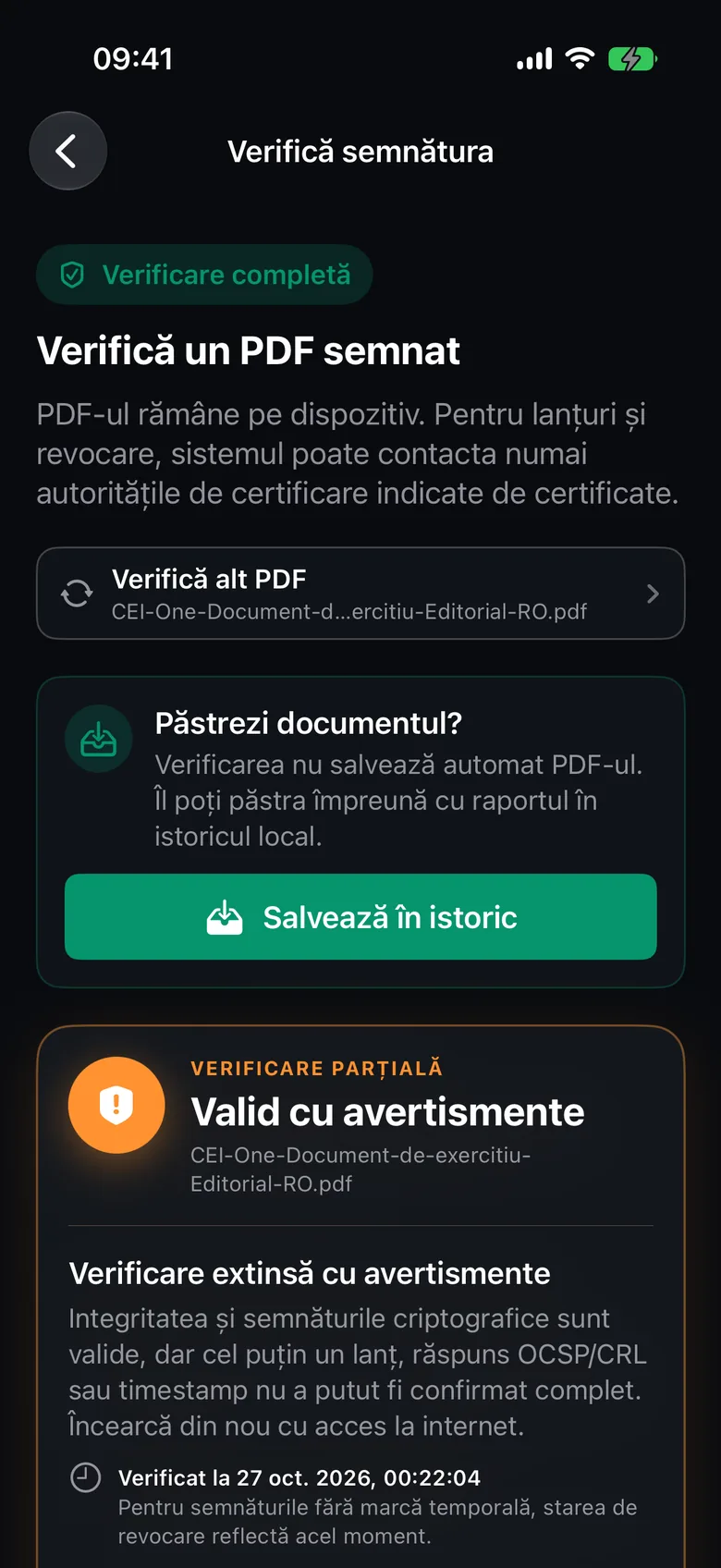
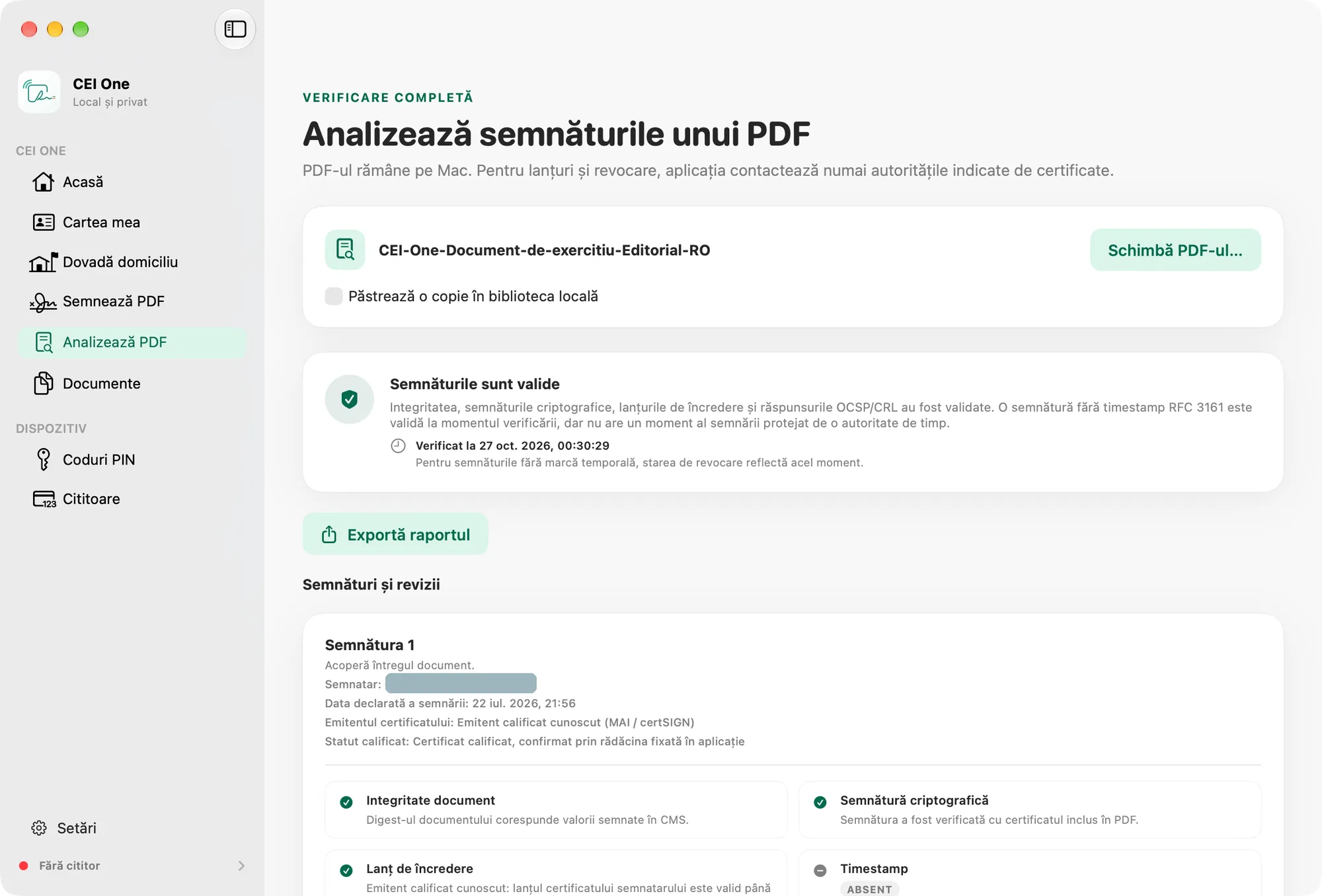
The same PDF can get different verdicts on iPhone and Mac, especially offline. For revocation, the app first uses the evidence in the document; when that isn’t enough, it falls back on the system’s certificate services (iOS or macOS), which can give different results. For example, the practice document can show “The signatures are valid” on Mac but Valid with warnings on an offline iPhone. To compare, verify it again with the internet on, on both devices.
The overall verdict
On iPhone, the verdict has a small label on top (for example, Full verification) and a large title (for example, Valid document). Below them you see an explanation and, when relevant, the Needs attention section.
On Mac, the result card shows the title and the explanation directly.
Valid document
On iPhone: Full verification and Valid document.
On Mac: “The signatures are fully verified” or “The signatures are valid”.
Integrity, the cryptographic signatures, the trust chains and the revocation responses (OCSP/CRL) were confirmed for every signed revision.
- “The signatures are fully verified” means that every signature also has a valid RFC 3161 timestamp.
- “The signatures are valid” means that at least one signature has no timestamp. It is valid at the time of verification, but the signing time isn’t protected by a time authority.
What to do: nothing. The document is technically in order.
Valid with warnings
On iPhone: Partial verification and Valid with warnings.
On Mac: “Extended verification with warnings”.
The signatures are cryptographically valid, but something couldn’t be fully confirmed. The explanation under the verdict tells you why. It can be one of these:
- The document was changed after a signature, and the changes are covered by a later signature.
- The signed range (ByteRange) of a signature doesn’t cover the document exactly.
- The changes made after signing couldn’t be fully analyzed.
- Annotations or form entries were added after signing. The signed content hasn’t changed, but what you see on screen may differ from what was signed.
- A later revision rewrote the structure of the PDF form without changing the signed content.
- The certificate issuer isn’t a known qualified provider.
- The verification was automatic and offline, so the certificate authorities weren’t contacted.
- At least one chain, OCSP/CRL response or timestamp couldn’t be fully confirmed.
What to do: read the explanation and the Needs attention section. If the document was changed after signing, compare it with the signed version or ask the sender for an unmodified copy. If the reason is the internet connection or the automatic verification, verify again with internet access.
On iPhone, use Verify again from Local history.
Invalid document
On iPhone: Verification failed and Invalid document.
On Mac: “Full verification failed”.
The explanation tells you why:
- “The document was changed after signing in ways that the document certification or the fields locked by a signature do not permit.”
- “The document was changed after the last signature, and the changes are not covered by any signature.”
- “At least one signature, certificate, revocation response, or timestamp is invalid.”
What to do: don’t rely on the document. Ask the sender for the original PDF, signed again. Open the signatures to see exactly which check failed.
Important
An Invalid document verdict means the document no longer matches what was signed, or a signature or certificate fails verification. Don’t treat it as a validly signed document.
Inconclusive result
On iPhone: Incomplete verification and Inconclusive result.
On Mac: “Verification is inconclusive” or “Incomplete verification”.
The app couldn’t reach a reliable conclusion. Possible reasons:
- At least one revision uses a format or algorithm that the device can’t fully validate.
- The document has an indirect, incomplete or invalid ByteRange structure.
- The document didn’t provide enough structural data to report on the signed revisions.
What to do: also check the document with another validation tool. You can ask the sender for a copy saved again from the app they signed it with.
Unsigned document
On iPhone: No signatures and Unsigned document.
On Mac: “No digital signatures found”.
The PDF doesn’t contain an electronic signature that the app can verify. A drawing or an image of a signature on the page isn’t an electronic signature.
What to do: if you expected a signed document, ask the sender for the signed file, not a scanned or printed copy.
On iPhone, the Save to history option doesn’t appear for an unsigned document.
The status of each signature
On iPhone, in the Signatures section, each signature has its own card. The first signature that needs attention opens automatically.
On Mac, in the Signatures and revisions section, each signature has its own card.
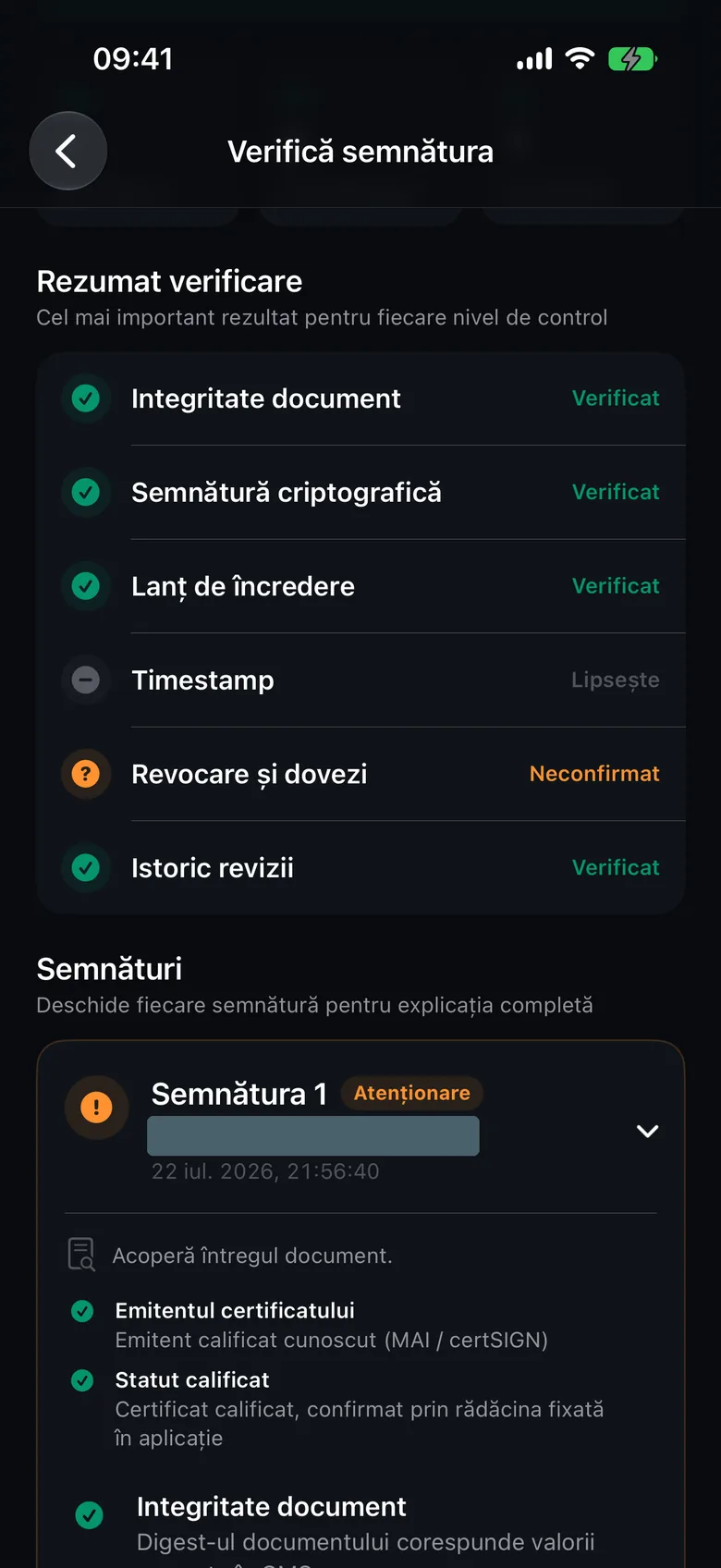
On iPhone, each signature gets a status:
- Valid: all checks passed.
- Valid, with a note: everything passed with one minor exception: the revocation status of the authority that issued the timestamp couldn’t be confirmed. This only limits how certain the signing time is, not the signature or the signer’s certificate.
- Review: a check couldn’t be confirmed, detected a later change, or is missing (other than the timestamp).
- Invalid: at least one check failed.
The card also shows the signer, the signing date, the certificate issuer and the qualified status.
The checks for each signature
Every signature goes through the same checks.
On iPhone, the Verification summary section shows the weakest result for each check across all signatures.
- Document integrity: the document matches what was signed.
- Cryptographic signature: the signature verifies against the included certificate.
- Trust chain: the certificate leads to a recognized root authority.
- Timestamp: the RFC 3161 timestamp is valid and matches the signature.
- Revocation and evidence: the certificate wasn’t revoked (OCSP or CRL response).
- Revision history: what was added to the document after the signature.
Each check has a status. Below, the first label is the one on iPhone, the second the one on Mac. On Mac, a passed check has no label: only the icon shows it.
- Verified / check-mark icon: the check passed.
- Failed / FAILED: the check failed. The signature becomes invalid.
- Unconfirmed / UNCONFIRMED: it couldn’t be confirmed, for example without internet access.
- Missing / ABSENT: the item doesn’t exist, for example the signature has no timestamp.
- Detected / DETECTED: a change was detected after the signature.
- Signed revision / AVAILABLE: information about the revision covered by the signature.
- With a note / NOTE: only the revocation status of the time authority isn’t confirmed.
Note
For a signature without a timestamp, the revocation status describes the time of verification, not the time of signing. The report tells you this directly, under the verification date.
The issuer and qualified status
Under each signature, the Certificate issuer can be:
- “Known qualified issuer (MAI / certSIGN)”: the issuer is confirmed.
- “Issuer recognized by the system”: the chain leads to a root recognized by iOS or macOS, but the issuer isn’t a known qualified one. If the certificate isn’t qualified either, the verdict is at best Valid with warnings.
- “Issuer not confirmed”: the issuer couldn’t be confirmed.
Qualified status can be:
- “Qualified certificate, confirmed through the root pinned in the app”
- “Known qualified issuer; the certificate does not declare qualified status”
- “Certificate declared qualified by its issuer (not checked against the EU Trusted List)”
- “The certificate does not declare qualified status”
Labels in the library
In document lists you see a short label, not the full verdict.
- On iPhone, in Local history: each signer has a label: Valid, Valid, with a note, Review, Invalid, Unknown, Not verified or Unsigned. The Information window shows the document’s status: Valid, Valid with warnings, Invalid, Unknown, Not verified or Unsigned.
- On Mac, in Documents: after a fresh verification you see Valid, Valid with limitations, Invalid, Inconclusive or Unsigned. The saved status can also be Not verified, Detected or Unsupported. Clicking the row runs the full verification and updates the status.
Note
On iPhone, if the app stopped during an automatic verification, the document shows “Automatic verification failed – verify manually”. Open its signatures to verify it again.
Automatic verification in Local history
On iPhone, documents in Local history are verified automatically, offline, using only the data in the document. In the report of such a verification you see the message “Automatic offline check: certificate authorities were not contacted. Use ‘Verify again’ for a complete online check.”
What to do: with the internet on, choose Verify again for the document. Verification from the Verify signature screen always uses the internet.
The verification report as a PDF
You can save the report as a PDF with Export report, on iPhone and Mac. The report contains the verdict, the document’s SHA-256 fingerprint and each signature with its checks.