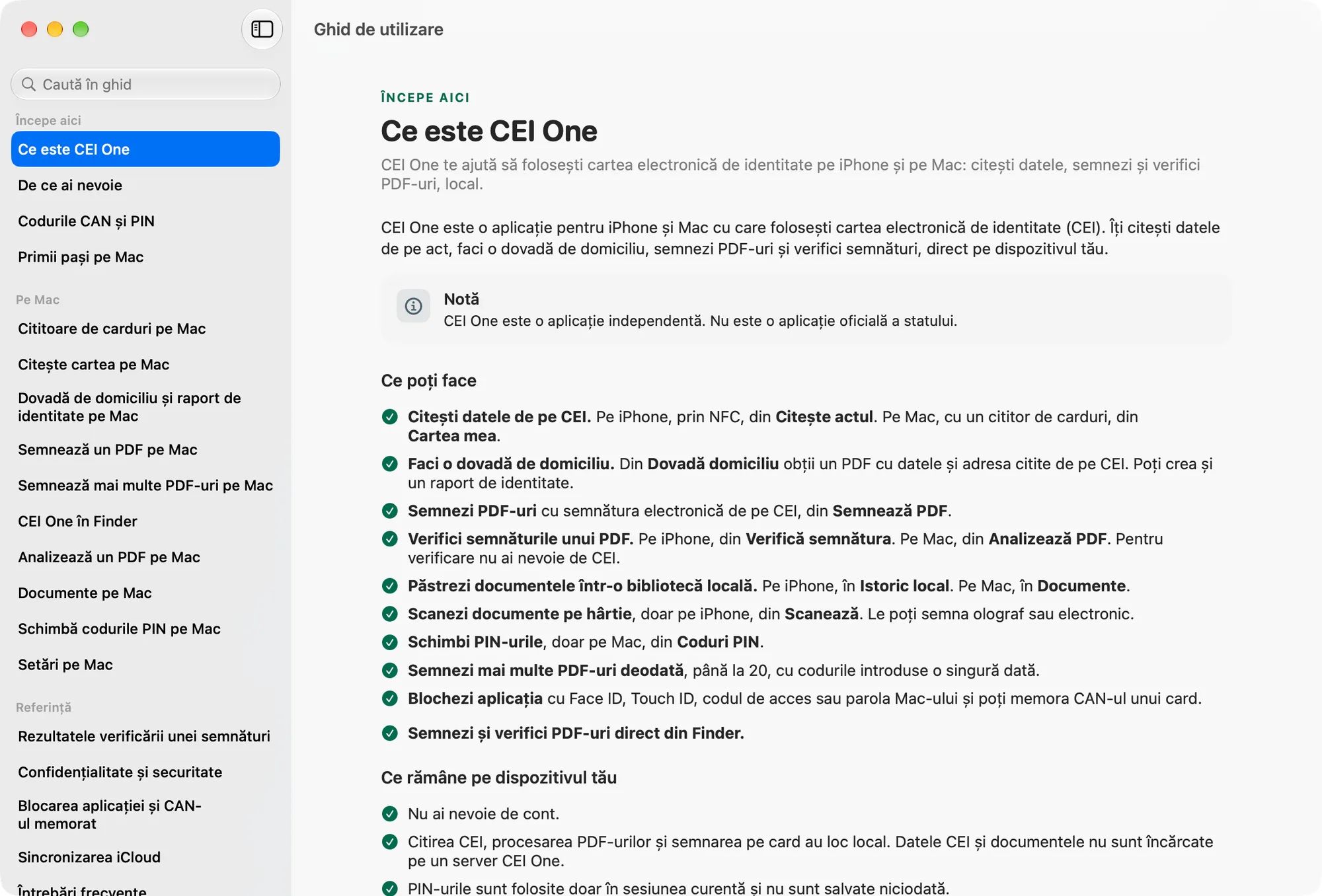
The CEI One settings on Mac are grouped into six sections: General, Library, Signing, Private iCloud, Privacy and About. Here’s what each option does.
Open the settings
- Choose Settings at the bottom of the sidebar (⌘9, or the Navigation › Settings menu).
- Or open the settings window from the app menu, with ⌘, (Command-comma).
Both show the same settings. Choose a section from the list on the left.
General
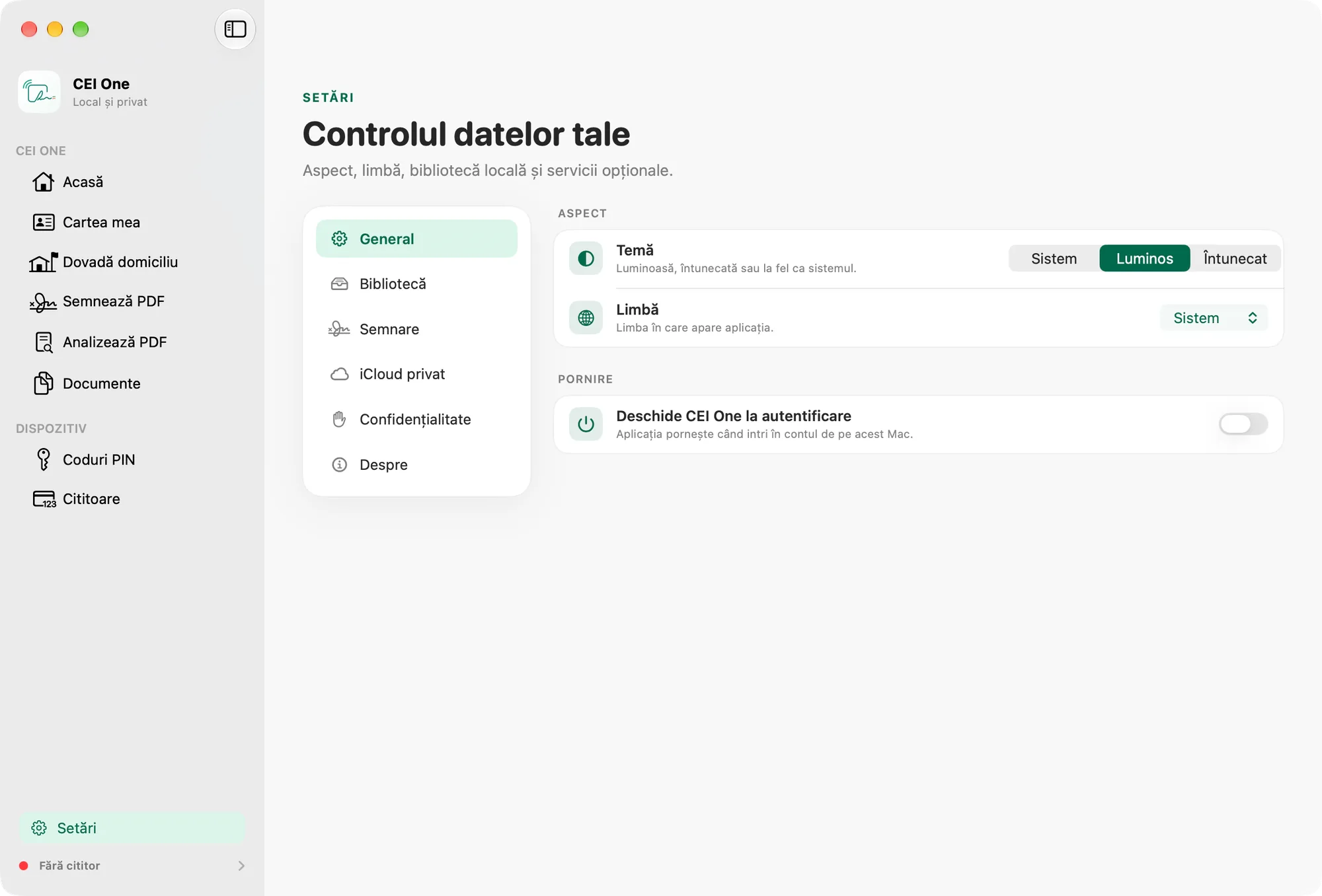
- Theme: System, Light or Dark.
- Language: System, English or Română. The change applies right away, in both windows.
- Open CEI One at login: the app starts when you log in to your account on this Mac.
Note
With System, the app appears in Romanian only if Romanian is the first preferred language in macOS. Otherwise it appears in English.
Library
This is where you set the rules for the documents in Documents.
- Documents on this Mac: how many documents you have and how much space they take up.
- Maximum number: 100, 250 or 500 documents. The default is 250.
- Retention: 30, 90, 180 or 365 days, or Unlimited. The default is Unlimited.
- Cleanup: click Review and clean up… to see the documents that go beyond the rules above.
The app never deletes anything on its own. After Review and clean up…, it shows you how many documents would be removed and what happens to each one: it stays in iCloud or it’s deleted permanently. Documents are removed only if you click Remove from This Mac.
Cleanup doesn’t delete the copies in iCloud and doesn’t touch documents created on other devices.
Under Removal, the Remove All Documents from This Mac row has a Remove… button. Here too, you see a summary first and then confirm.
Important
Documents that aren’t saved in iCloud are deleted permanently when you remove them from this Mac.
Signing
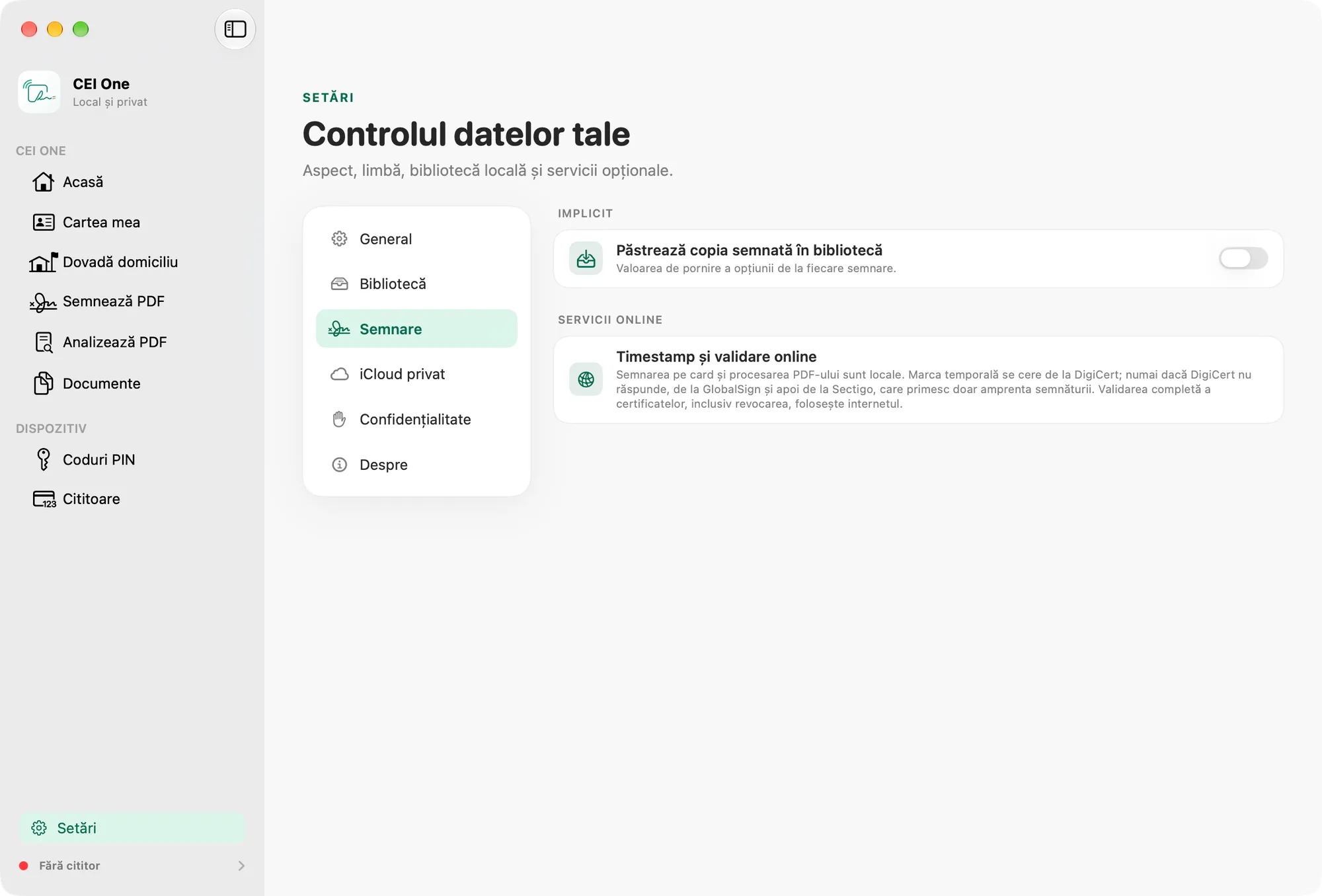
- Keep the signed copy in the library: the starting value of the Save a copy to the local library option each time you sign. It’s off by default.
- Timestamping and online validation: explains what uses the internet. Signing on the card and processing the PDF happen locally. The timestamp is requested from DigiCert; only if DigiCert doesn’t respond, from GlobalSign and then from Sectigo. These services receive only the signature’s fingerprint. Full certificate validation, including revocation, uses the internet.
Private iCloud
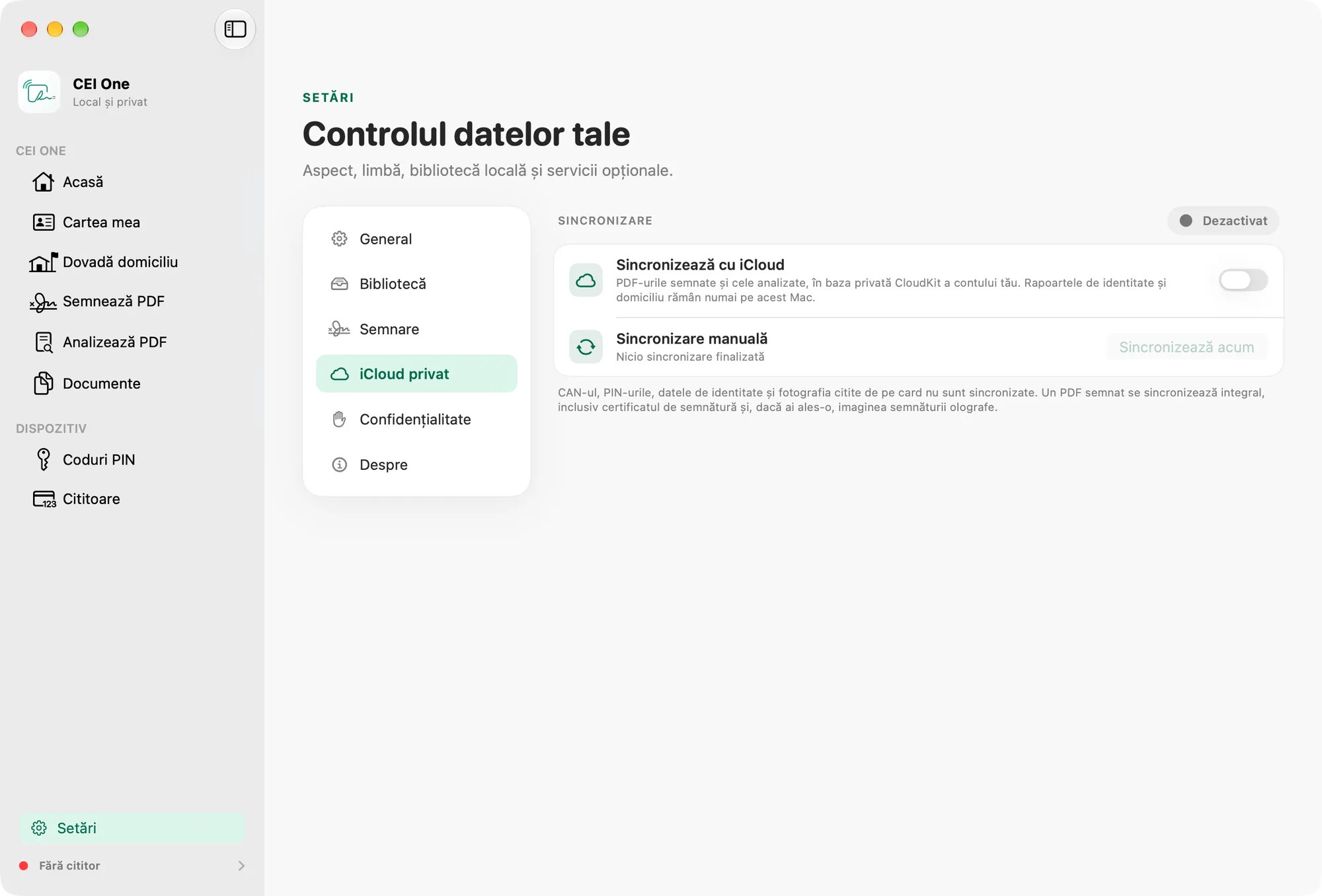
iCloud sync is off by default.
- Turn on Sync with iCloud.
- In the “Sync your library with iCloud?” window, click Enable. If you change your mind, click Not now.
Only signed and analyzed PDFs are synced, to your account’s private CloudKit database. Identity reports and proofs of address stay on this Mac only. The CAN, the PINs, and the identity data and photo read from the card are never synced. A signed PDF is synced in full, including the certificate and, if you chose it, the image of your handwritten signature.
Under Manual sync, you’ll see the date of the last sync and the Sync now button. The badge at the top shows Enabled, Off, Syncing or Needs attention.
If something needs your attention, a Needs attention group appears. For example, you can download documents that were removed only from this Mac again, with Download Again. Details in iCloud sync.
Privacy
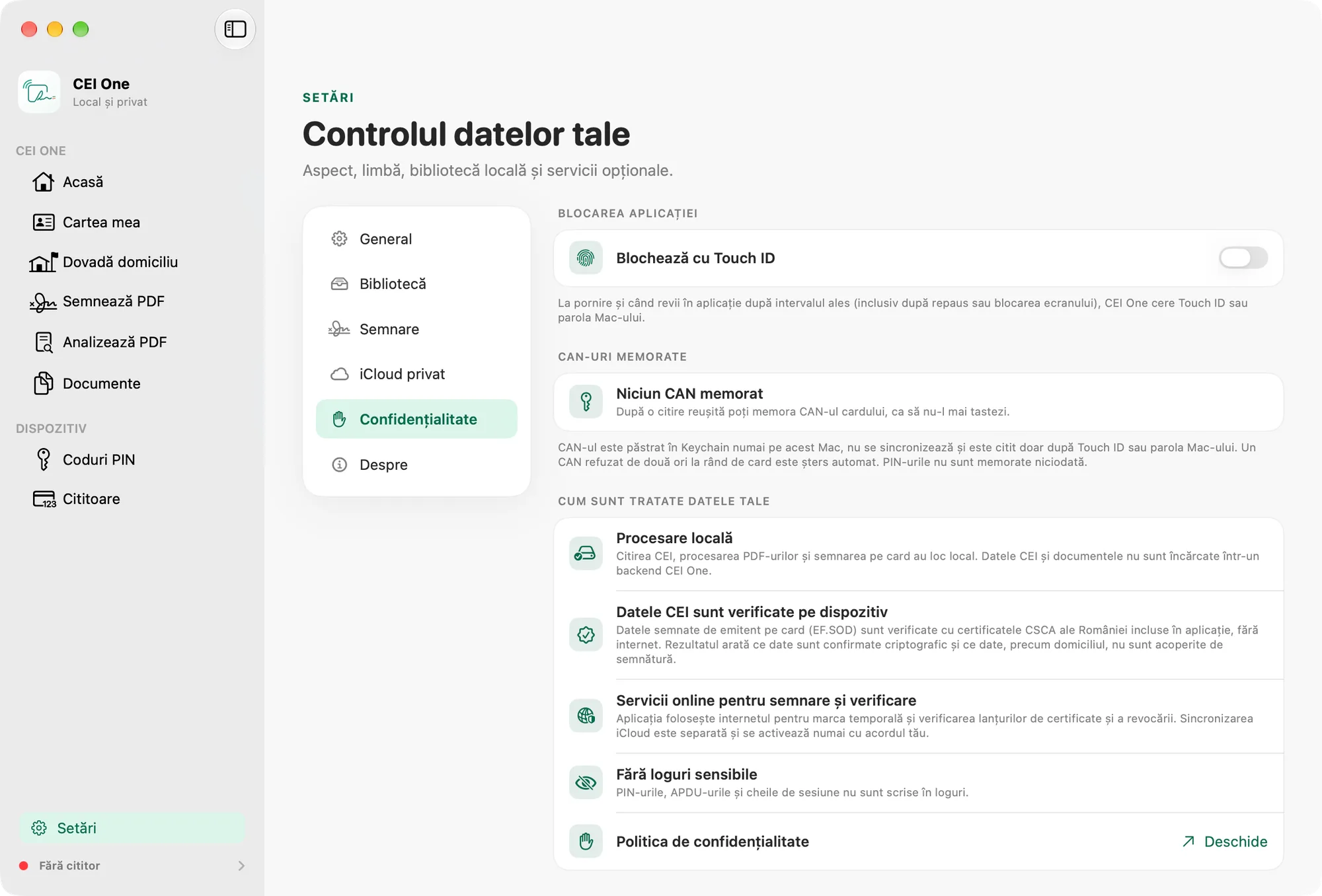
Under How your data is handled, you’ll find a short summary of how the app works:
- Local processing: reading the eID, processing PDFs and signing on the card happen locally. Your eID data and documents aren’t uploaded to a CEI One server.
- eID data is checked on the device: the data signed by the issuer on the card is checked against Romania’s CSCA certificates, which are included in the app, without the internet.
- Online services for signing and verification: the internet is used for the timestamp and for checking certificate chains and revocation.
- No sensitive logs: PINs, APDUs and session keys are never written to logs.
- Privacy Policy: Open shows it in your browser.
This section also has an App Lock group, with Lock with Touch ID or Lock with the Mac password. After you turn on the lock, the Require Unlock option appears too (Immediately, After 1 minute or After 5 minutes). The Remembered CANs list appears here too: you delete one CAN with Delete, or all of them with Delete All.
You’ll find details about the lock and remembered CANs in App lock and remembered CAN.
About
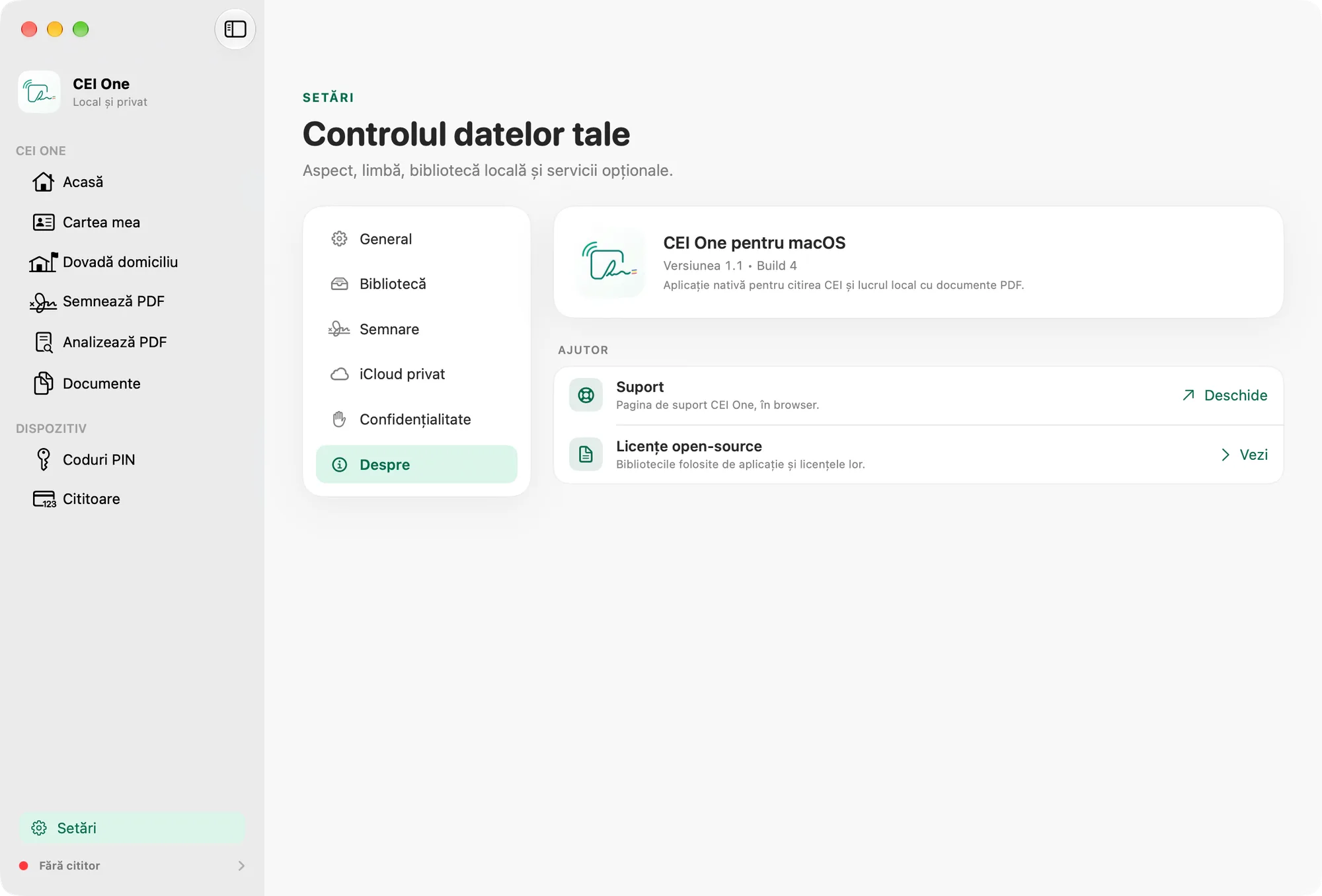
Here you’ll see the version and build number. The Help group has:
- Support: Open shows the support page in your browser.
- Open-source licenses: View shows the libraries the app uses and their licenses.
The user guide is built into the app and works without the internet. You open it from Settings › About › Help › User guide, or from the app’s Help menu (⌘?).