You can sign several PDFs in a single operation. You choose the mark position once and enter the CAN and your signing PIN just once.
Before you start
- You can sign at most 20 documents at a time. If you choose more, the app keeps the first 20 and tells you how many weren’t added.
- You need internet, just as when signing a single PDF.
- Each document is checked before signing. A file that can’t be read or signed is flagged in the list and skipped.
Sign the documents
- On the Home screen, tap Sign PDF, then Choose PDF.
- In Files, select 2 or more PDFs and tap Open at the top right. The Sign Several PDFs screen opens.
- Check the Documents list. Its order may differ from the order in Files. As long as there are at least two documents in the list, you can remove one with the button next to it.
- Under Signature position, choose the page and drag the mark on the document labeled “The mark is placed on this document.” (usually the first in the list). Choose the First line of the mark and, if you like, turn on Show border.
- Under Signing codes, enter the CAN and your signing PIN.
- Tap the sign button, which also shows the number of documents (for example, Sign 3 Documents).
- When the NFC window appears, hold your eID near the top of the iPhone.
- If Hold the eID Again appears, lift the eID off the iPhone, tap Continue and bring it close again.
- When it finishes, the result screen opens.
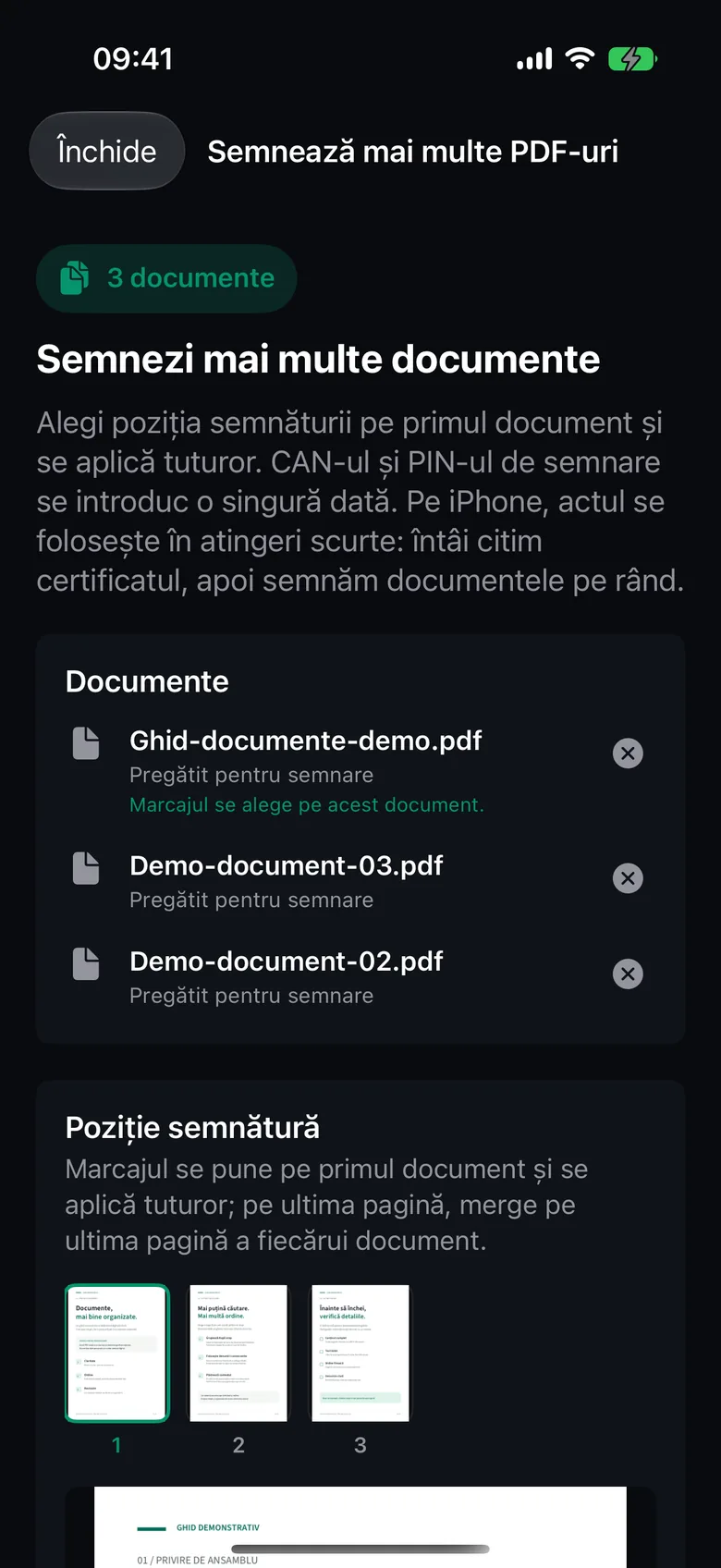
Where the mark appears
You place the mark on the document labeled “The mark is placed on this document.” and it’s applied to all of them, in the same relative position and on the same page number. If a document has fewer pages, the mark goes on its last page. If you place the mark on the last page of that document, it goes on the last page of every document.
Why the documents are signed in rounds
iOS closes the NFC window after a few seconds. That’s why, on iPhone, the eID is used in short taps: first the app reads the certificate, then it signs the documents over several rounds. Between rounds you’ll see the Hold the eID Again card and how many documents are left to sign.
Documents the eID has already signed aren’t lost if the NFC window closes. The app finalizes them at the end.
Important
Don’t leave the app while signing. If it goes to the background, signing stops and the codes are erased. A PIN or CAN error also stops the whole signing process.
You can stop at any time with Stop Signing. The remaining documents aren’t signed.
The result
The title shows how many documents were signed, for example “3 of 3 signed”.
- The share button on each row sends that document.
- Share All sends all the signed documents.
- Save to Files saves copies to the Files app.
- Done closes the screen and takes you to the Home screen.
The signed copies are also kept in Local history.