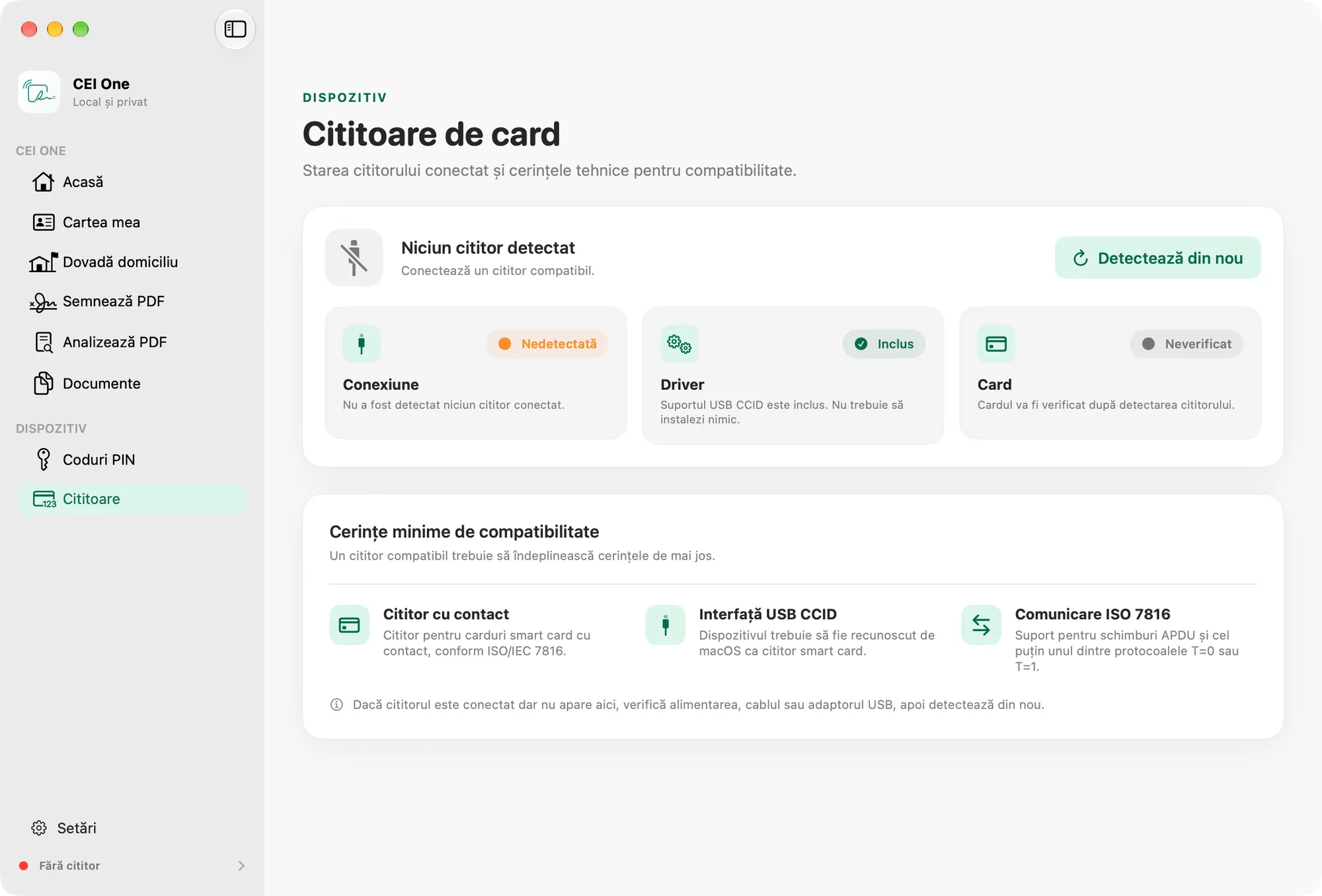
On Mac, CEI One talks to your Romanian electronic identity card (eID) through a contact card reader connected over USB. The Readers page shows whether macOS can see the reader and whether the app recognizes the card.
Which reader you need
When no reader is connected, the app lists the requirements under Minimum compatibility requirements. A compatible reader has:
- Contact card reader: a contact smart card reader compliant with ISO/IEC 7816.
- USB CCID interface: macOS recognizes it as a smart card reader.
- ISO 7816 communication: it supports APDU exchanges and at least one of the T=0 or T=1 protocols.
USB CCID support is included. You don’t need to install any drivers.
Connect the reader
- Connect the reader to your Mac over USB.
- Open CEI One and choose Readers in the sidebar. You can also use the Navigation › Readers menu (⌘8).
- Check the Connection card. When macOS sees the reader, its badge shows Detected.
- Insert your eID into the reader, chip first. Leave it there until the operation finishes.
- If the reader doesn’t appear, check its power, the cable or the USB adapter. Then click Detect again (⌘R).
The reader status also appears at the bottom of the sidebar, with a colored dot: Checking, No reader, No card, Card detected, eID profile detected, Incompatible or Reader error. Click it to open the Readers page.
What the statuses mean
The title at the top of the Readers page changes with the situation:
- Looking for readers: the app is checking locally for connected readers.
- No reader detected: connect a compatible reader. The same title also appears when checking for readers fails; the app then asks you to reconnect the reader and try again.
- Reader detected, no card: the reader is available but doesn’t report a card. Insert your eID.
- Card detected, eID not confirmed: the card responds, but the app hasn’t yet communicated with it as an eID.
- eID profile detected: the app has already communicated with the card successfully, for example when checking the CAN, reading or signing.
- Incompatible or unresponsive card: a card is present but doesn’t respond to the smart card protocol.
Below the title, three cards sum up the situation: Connection, Driver and Card. The Card card shows Absent, Detected, Confirmed or Incompatible. While the app looks for readers, it shows Checking; with no reader or after an error, it shows Not verified.
Note
A reader appearing on this page confirms the connection, not full compatibility with the eID. Compatibility is confirmed only after the app communicates with the card.
Several readers
If you’ve connected more than one reader, the Active reader list appears. Use it to choose the reader the app uses for the next session with your eID. If you don’t choose one, the app uses the first reader, in name order.
Technical details
When a reader is connected, you can open the Technical details section. It shows the reader name, system access (CryptoTokenKit / USB CCID), the card’s ATR, the maximum APDU size and the reported protocols. The ATR appears only after you insert the card. These details are useful if you ask support for help.
Tip
Only one app at a time can use the reader. Quit any other app that uses the reader before you read or sign.