The Analyze PDF page verifies the electronic signatures in a PDF document. You don’t need your eID or a card reader.
Analyze a document
- Choose Analyze PDF in the sidebar (⌘5). You can also click Verify signature on the Home page.
- Drag a PDF onto the “Drag a PDF here” area, or click Choose PDF… (⌘O). The file must be a PDF of up to 50 MB.
- If you want to keep the document in Documents, turn on Save a copy to the local library. This option is off each time you open the page.
- Wait for the “Checking chains, revocation, and timestamps…” message to disappear. Then read the result.
To analyze a different document, click Change PDF… (⌘O) or drag another PDF onto the document card.
Note
The analysis uses the internet for certificate chains, revocation and the timestamp. The app contacts only the authorities named in the certificates. The PDF stays on your Mac.
What we check
On the start page, the cards under What we check sum up the analysis:
- Integrity and signature: compares the document with what was signed and cryptographically verifies the embedded certificate.
- Successive revisions: analyzes each revision of the PDF covered by a signature separately.
- Trust, timestamp, and revocation: checks the certificate chain, OCSP/CRL, the timestamp authority and the PAdES-LT evidence.
Read the result
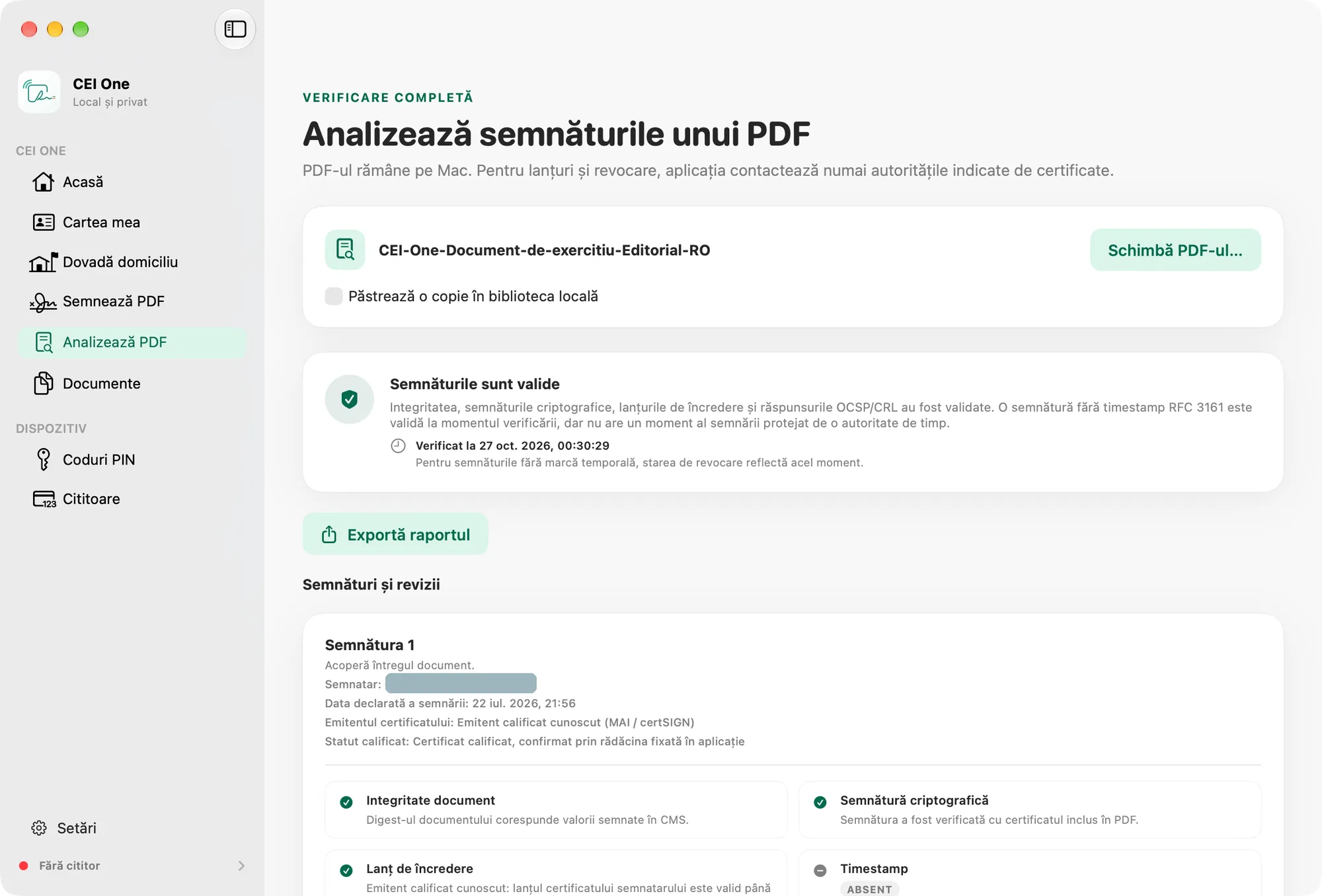
At the top, you’ll see the overall status: a title, an explanation and the time of the check (“Verified on …”). For signatures without a timestamp, the revocation status reflects the time of the check.
Under Signatures and revisions, there’s a card for each signature. Each card shows:
- the signer and the declared signing date;
- the certificate issuer and its qualified status;
- the layered checks: Document integrity, Cryptographic signature, Trust chain, Timestamp, Revocation and evidence and Revision history.
A check that passed shows only a check-mark icon. Any other check has a label: FAILED, UNCONFIRMED, AVAILABLE, ABSENT, DETECTED or NOTE. What each result means and what you can do about it is in Verification results.
Keep a copy
If Save a copy to the local library is on, the document goes to Documents as an “Analyzed PDF”, together with its status. You can also turn the option on after the analysis. The confirmation reads “The copy was saved locally.”
Export the report
The Export report button saves a PDF report with the verification result, the document’s SHA-256 fingerprint and the details of each signature. The suggested name is “Verification report - document name.pdf”. The same button also appears in Documents.