Local history is the app’s document library. This is where you’ll find the signed PDFs, scans, identity reports and verified documents you’ve saved. Your documents stay on this iPhone.
Open your history
On the Home screen, under Local control, tap Local history.
The first time you open it, the app asks Sync your library with iCloud?:
- Enable sync starts syncing with the private iCloud database of your account.
- Keep local only keeps your documents on this iPhone only.
The app never contacts iCloud without your consent. You can change your choice at any time from Settings › Sync › Private iCloud. See iCloud sync.
After that, you’ll see the Your local history screen once, with a few tips. Tap Got it.
The practice document
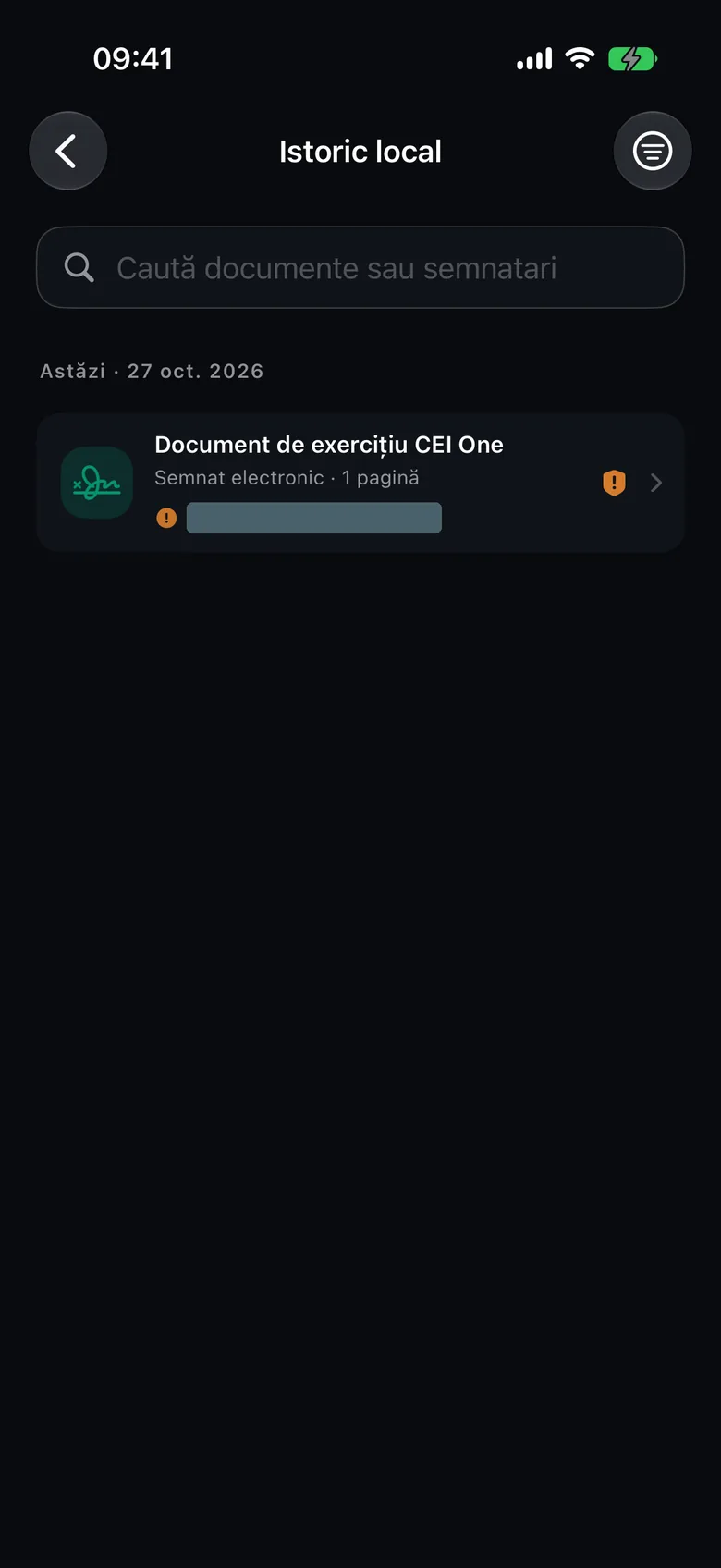
Your history includes CEI One Practice Document, a PDF that is already signed. You can use it to try out signature verification and the report, without your eID. The document follows the app’s language and isn’t synced to iCloud. If you delete it, it won’t come back.
Search and filter
- Type a document name, a type or a signer’s name in the Search documents or signers field.
- Use the filter menu at the top right. Under Document type, choose All documents or a single type.
Documents are grouped by day, newest first. Each row shows the type, the number of pages, the signers and the signature status.
The document types are: Electronically signed, Scanned, PDF, Identity report and Handwritten signature.
Automatic signature checks
The app checks the signatures of the documents in your history on its own, one at a time, in the background. This automatic check doesn’t use the internet: it works only with the data inside the document. That’s why the trust chain and revocation may remain unconfirmed.
The status appears on each row: Valid, Valid, with a note, Review, Invalid, Unknown, Not verified or Unsigned. While the check is running, a progress indicator appears on the row.
Tip
For a full, online verification, use Verify again. The app then contacts the certificate authorities.
Quick actions in the list
- Swipe right on a document: Signatures (or Verify, if there’s no report yet) and, for documents that can hold an electronic signature, Verify again.
- Swipe left: Delete and Export.
- Tap the document to open it.
Document preview
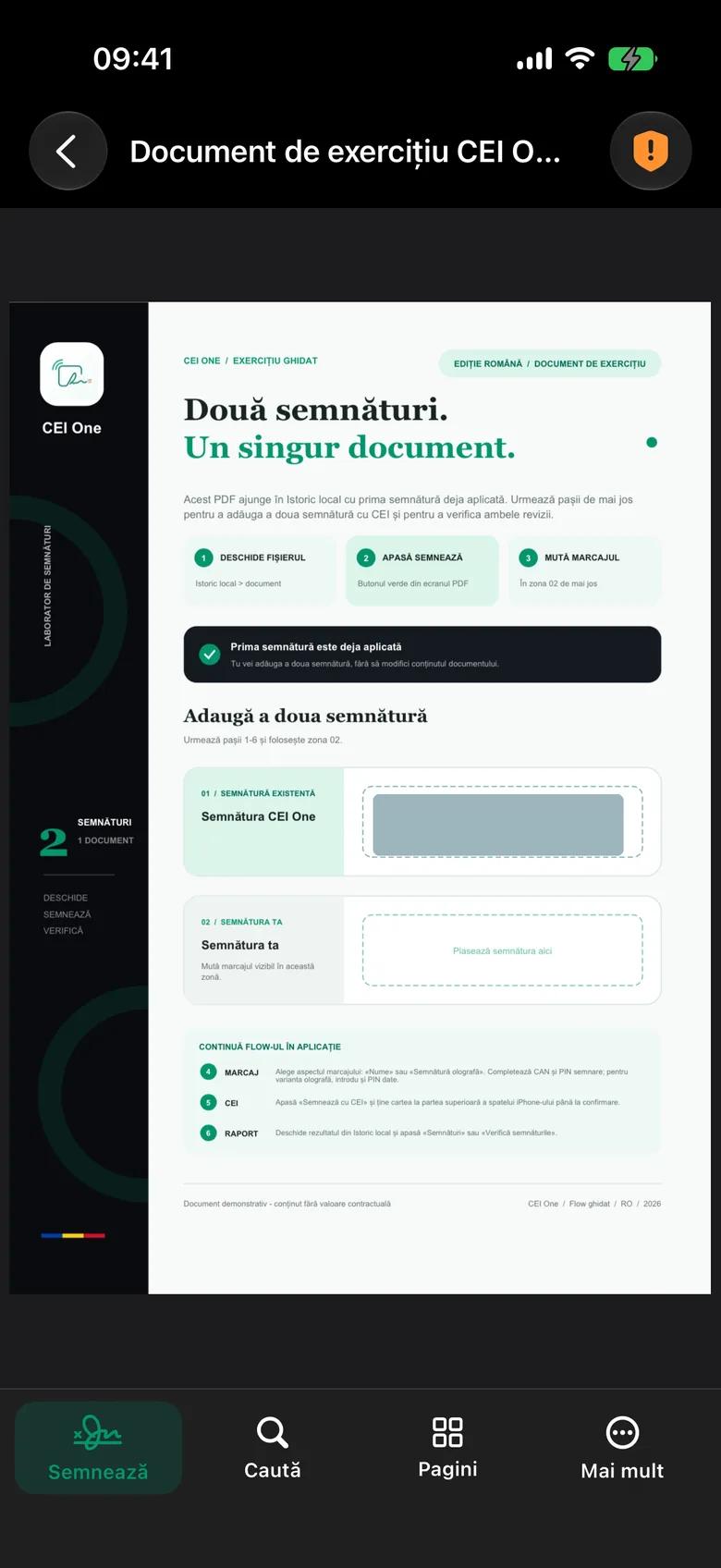
The preview shows the PDF. The button at the top right shows the signature status; tap it to open the report.
In the bottom bar you have:
- Sign: opens signing with this document.
- Search: searches for text in the document.
- Pages: shows all the pages.
- More: Signatures, Verify again, Information, Share, Duplicate, Rename, Print and Delete.
Rename changes only the name in the library. The content of the PDF stays the same. Duplicate creates a copy with the suffix “- copie” (this suffix stays in Romanian, even with the English UI).
The verification report in your history also has an Export report button, which creates a PDF of the report.
Delete a document
- Choose Delete from the list or from the More menu.
- Confirm the deletion.
If iCloud sync is on and the document is saved in iCloud, you choose between:
- Delete only from this iPhone: the copy in iCloud and on your other devices stays.
- Delete from all devices (iCloud): the document disappears everywhere.
Important
Your history has no trash. A document that isn’t saved in iCloud is deleted permanently.
Retention rules
You can set how many documents the app keeps, for how long and how much space they can use, from Settings › Library › Storage and retention. The app never deletes anything automatically. If the library goes over your saved rules, a card with Review and Not now appears in your history. Details in Settings on iPhone.