Your eID uses three codes: the CAN, the data PIN and the signing PIN. Here you’ll learn where to find them, what each one is for and how to keep them safe.
The three codes
The CAN (6 digits)
The CAN is the 6-digit code printed on the front of your eID, immediately below the “Date of expiry” field. Enter it exactly as it appears on the card. You need it for every operation with the card: reading, proof of address, signing and changing a PIN.
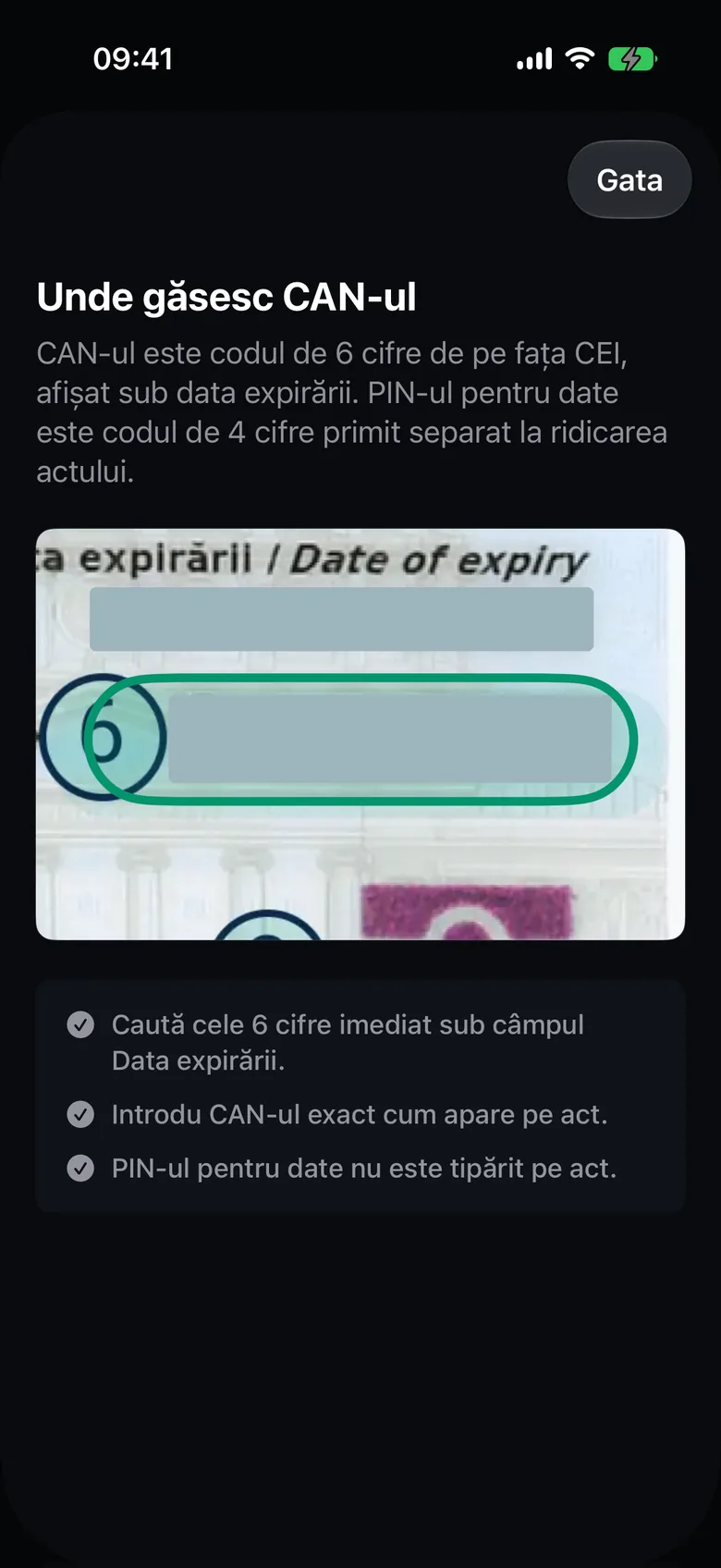
On iPhone, the Where to find the CAN guide opens from the info button next to Enter the codes, on the Read your eID screen.
The data PIN (4 digits)
The data PIN has 4 digits and you receive it separately when you collect your eID. It is not printed on the card. You use it to read your data and to create a proof of address. On both iPhone and Mac, the field is called Data PIN.
The signing PIN (6 digits)
The signing PIN has 6 digits and authorizes every electronic signature. On both iPhone and Mac, the field is called Signing PIN.
Which code you need
- Reading your data (Read your eID on iPhone, My eID on Mac): the CAN and the data PIN.
- Proof of address: the CAN and the data PIN.
- Sign PDF: the CAN and the signing PIN.
- Verifying a signature (Verify signature on iPhone, Analyze PDF on Mac): no code, and no eID either.
- Changing a PIN (PIN codes, Mac only): the CAN, the current PIN and the new PIN.
Wrong attempts and blocking
After 5 incorrect entries, the PIN is blocked. The same rule applies to the data PIN and the signing PIN.
- The number of remaining attempts comes from the card. The app shows it only when the card reports it.
- CEI One never retries a rejected PIN automatically.
- On iPhone, when you have only one attempt left, the app doesn’t send the PIN until you confirm. For the data PIN, the alert is called Last data PIN attempt and the confirmation button is Use the last attempt.
- On Mac, when signing or changing a PIN, you check a confirmation box before the last attempt. The status shows as N attempts remaining, Last attempt or PIN blocked.
Important
If the connection to your eID drops right while the PIN is being checked, the card may have counted an attempt. Double-check your PIN before you try again.
If a PIN is blocked
CEI One can’t unblock a PIN. Unblocking requires the official reset procedure. Until then, any operation that needs that PIN won’t work.
Changing your PINs
You can change the data PIN and the signing PIN on Mac only, from PIN codes › Change PIN. You can’t change PINs on iPhone.
The steps are in Change your PIN codes on Mac.
How the codes are kept
- PINs stay only in the session’s memory. They’re never saved and never reach iCloud.
- The CAN stays only in the session’s memory, unless you choose to remember it.
You can choose to remember a card’s CAN after a successful read. The CAN is kept in the Keychain on that device only, isn’t synced, and is read only after Face ID, Touch ID, your passcode or your Mac password. A CAN that the card rejects twice in a row is deleted automatically. PINs are never remembered. Details in App lock and remembered CAN.
Important
Never send your CAN or PINs to anyone, including the CEI One support team.
For more on reading your eID on iPhone, see Read your eID on iPhone.