The Documents page is the CEI One local library on Mac. This is where you’ll find the documents you chose to keep, and where you can quickly check the status of their signatures.
What goes into Documents
Documents appear here only when you choose to keep them:
- signed PDFs, if you turned on Save a copy to the local library when signing;
- analyzed PDFs, if you turned on the same option in Analyze PDF;
- identity reports and proofs of address saved with Save to library;
- documents synced through iCloud from your other devices, if you turned on sync.
The files are kept on this Mac, and only your user account can read them.
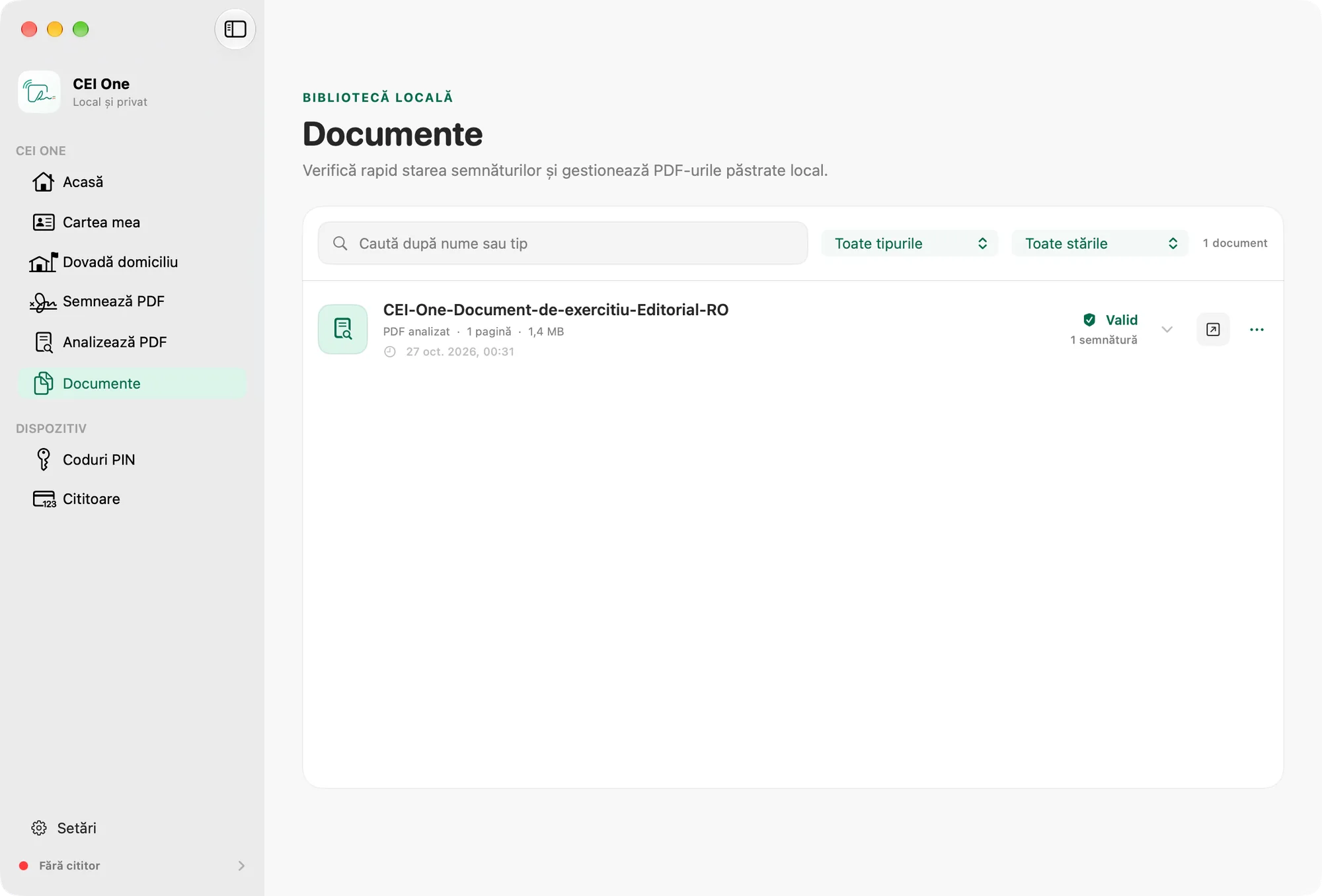
Search and filter
- Choose Documents in the sidebar (⌘6).
- Type in the Search by name or type field.
- Choose a type from the Type list, for example “PDF signed”, “Analyzed PDF”, “Proof of domicile” or “Identity report”.
- Choose a status from the Status list, for example “Valid”, “Unsigned” or “Invalid”.
The number of documents appears next to the filters. The most recently changed documents come first. If the filters find nothing, click Reset filters.
Each row shows the type, the number of pages, the size, the date, the signature status and the number of signatures.
See the verification details
- Click a row.
- The app checks the signatures again (“Validating signatures…”) and opens the details.
- On the left, you’ll see the result and VERIFIED SIGNATURES: the signer, the date, the revision covered and the issuer.
- On the right, you’ll see WHAT WE CHECKED, with the checks for each signature. The latest signature has the LATEST label.
The document’s saved status is updated after the check. If the details don’t load, click Try again. What each status means is in Verification results.
Actions for a document
To the right of each row, you have the open button and the More actions menu (⋯):
- Open: opens the PDF in your default PDF app.
- Reanalyze signatures: runs the check again.
- Export copy…: saves a copy wherever you choose.
- Copy SHA-256 fingerprint: copies the document’s fingerprint to the clipboard.
- Delete…: removes the document (see below).
The verification details also have an Export report button, which saves the verification report as a PDF.
Delete a document
- Choose Delete… from the More actions menu.
- Read the message. It tells you what will happen to the document.
- Choose Remove from This Mac or Cancel.
What Remove from This Mac does:
- if the document is saved in iCloud, it stays in iCloud and on your other devices; it won’t be downloaded to this Mac again;
- if the app can’t confirm that the document is in iCloud, removing it may delete it permanently;
- if the document isn’t in iCloud, removing it deletes it permanently.
When the document can also be deleted from iCloud, the message has a Delete from All Devices… option too. The app asks you to confirm a second time.
Important
Delete from All Devices removes the document from iCloud and from every device that syncs the CEI One library. You can’t undo this.
Syncing
If you’ve turned on iCloud, the Documents page starts a sync when you open it, if the last one started more than a minute ago. Details in iCloud sync.
Library limits and cleanup are in Settings on Mac.