On Mac, CEI One reads your eID through a contact card reader. Here you’ll install the app, connect the reader, learn where each feature lives and read your eID for the first time.
Install the app
- Download CEI One from the App Store. You need macOS 14 or later.
- Open the app. The main window opens, with the sidebar on the left and the Home page.
You don’t create an account, and you don’t install any drivers.
Connect your card reader
- Connect the smart card reader to your Mac over USB.
- Look at the bottom of the sidebar. The reader status appears there, for example No reader, No card or Card detected.
- Insert your eID into the reader, chip first. Leave it in the reader until the operation finishes.
- For more details, click the reader status. The Readers page opens.
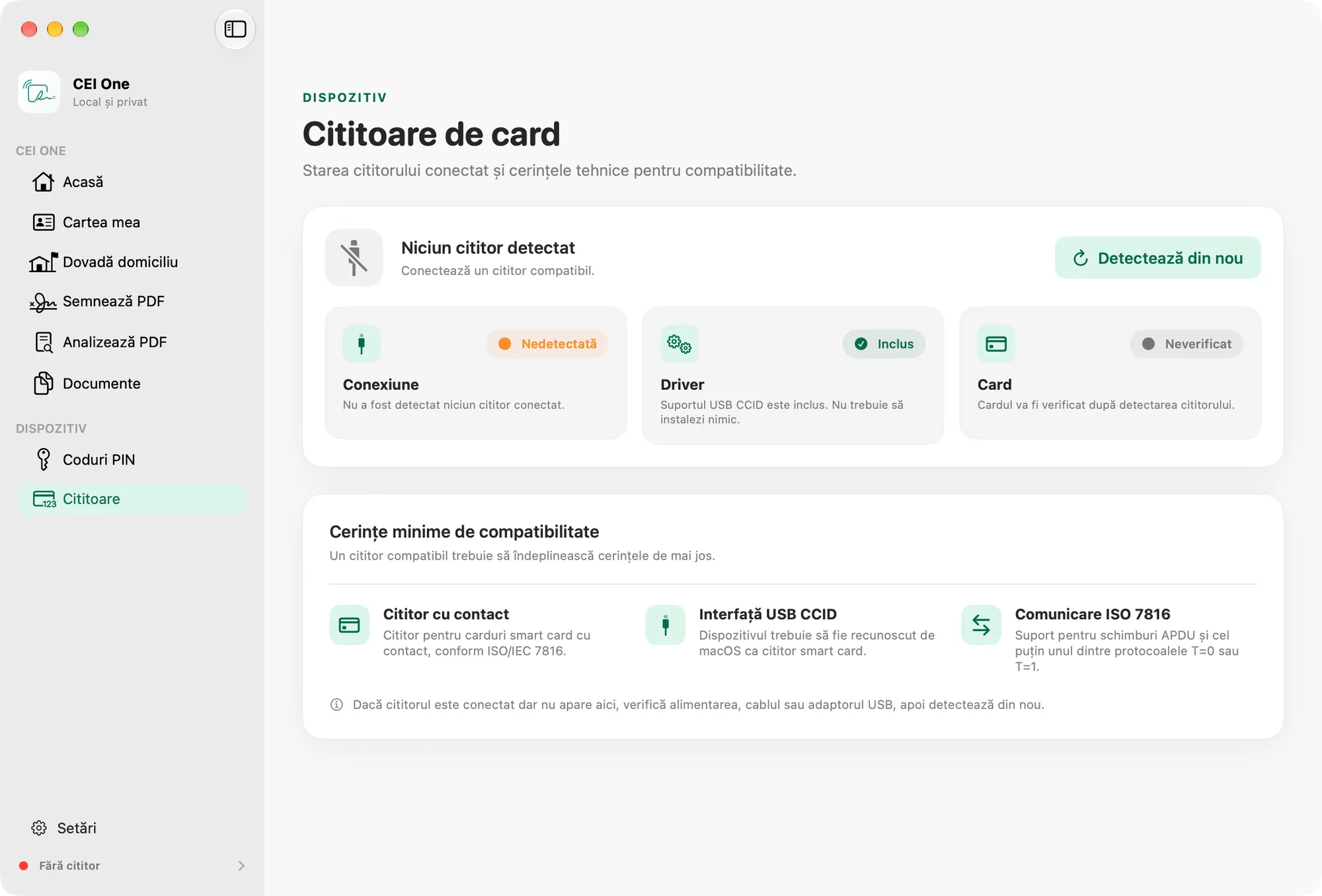
If the reader is connected but doesn’t show up, check its power, the cable or the USB adapter. Then click Detect again.
Note
Card detected means that a card is responding, not that it’s a compatible eID. Compatibility is confirmed when the app communicates with the card. The status then changes to eID profile detected.
Tip
Quit any other app that uses the reader before you read or sign.
The reader requirements are in What you need.
The sidebar
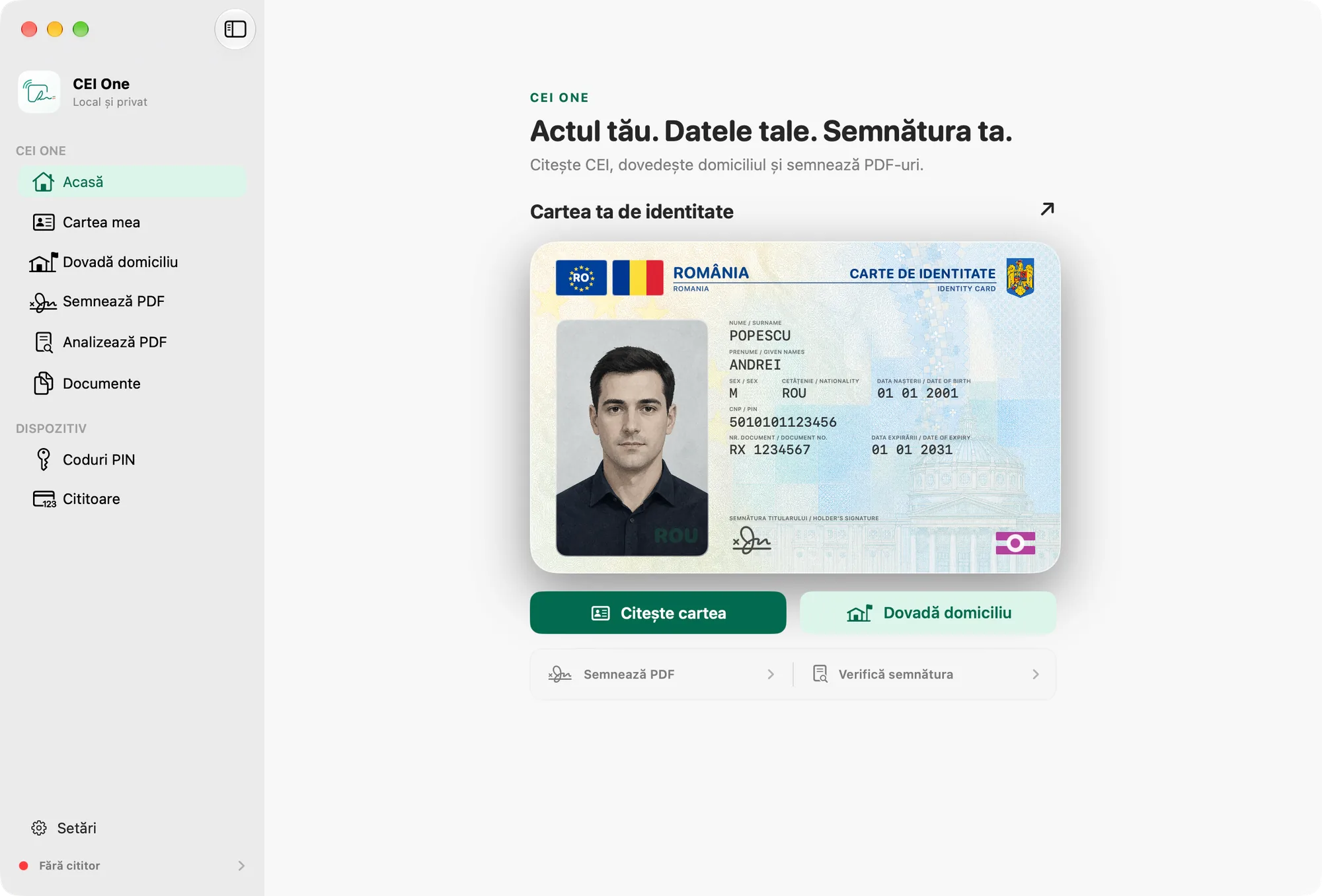
The sidebar has two groups, with Settings at the bottom:
- CEI ONE: Home, My eID (reading your eID), Proof of address, Sign PDF, Analyze PDF (verifying signatures) and Documents (the local library).
- DEVICE: PIN codes (changing your PINs) and Readers.
- Settings, at the bottom, above the reader status.
The Home page has shortcuts: Read the card opens My eID, and Verify signature opens Analyze PDF. You’ll also find Proof of address and Sign PDF there.
The Settings window
Open the settings from Settings in the sidebar, or with ⌘, (Command-comma). Both show the same settings.
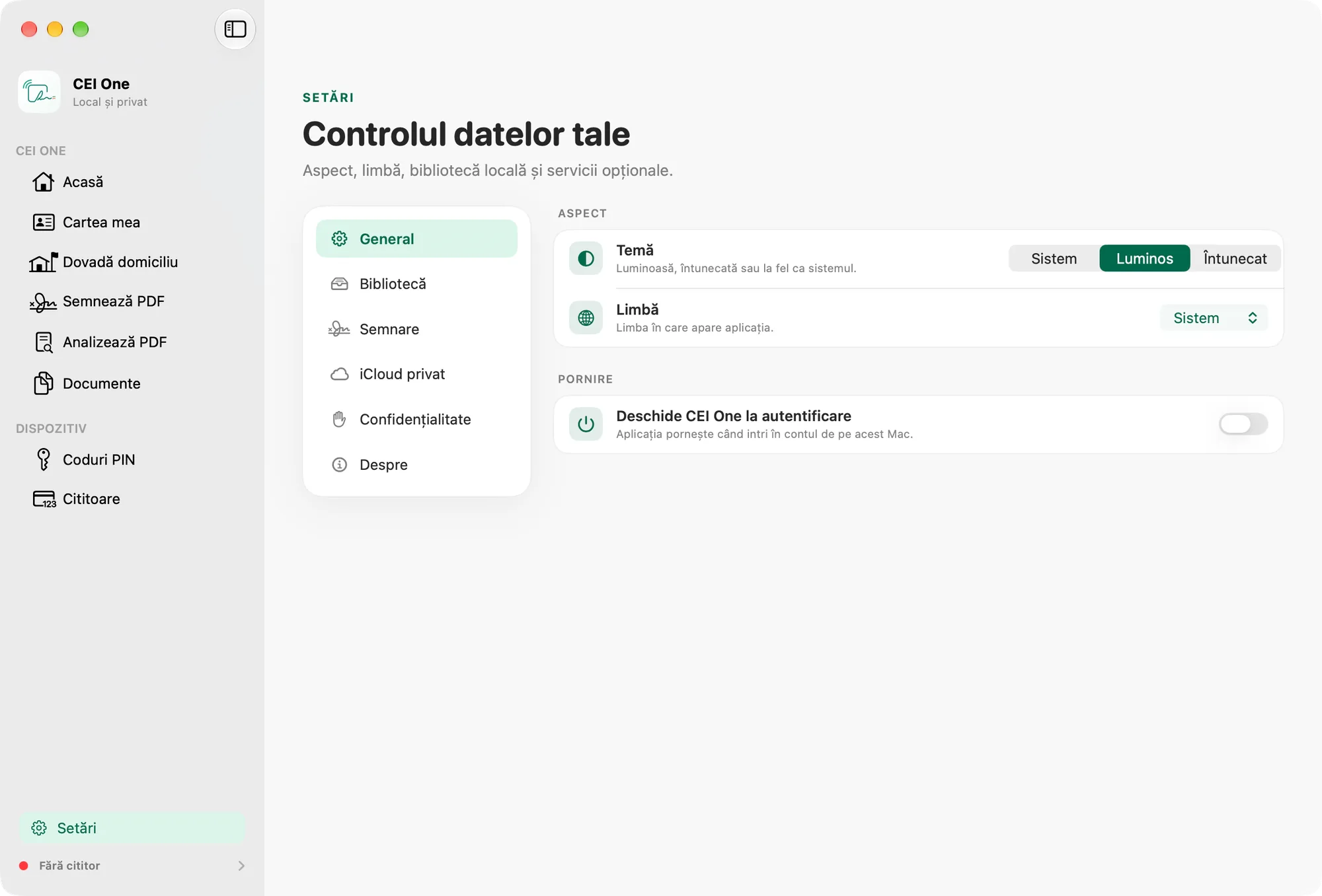
Settings has six sections: General, Library, Signing, Private iCloud, Privacy and About.
- Open the General section.
- Under Appearance, choose System, Light or Dark.
- Under Language, choose System, English or Română.
- If you want the app to start with your Mac, turn on Open CEI One at login.
Note
With System, the app appears in Romanian only if Romanian is the first preferred language in macOS. Otherwise it appears in English.
All the options are described in Settings on Mac.
Read your eID for the first time
Have your eID ready, along with the CAN printed on it and your data PIN (4 digits).
- In the sidebar, choose My eID.
- At the Prepare the card step, check that the reader and the card are ready. Then click Continue. The button becomes available once you connect the reader and insert your eID.
- Enter the CAN under CAN code. The app first checks the CAN with the card and shows CAN verified.
- Enter the PIN under Data PIN.
- Click Read data. Don’t remove the card from the reader until it finishes.
All the steps and the result are in Read your eID on Mac.