With Sign PDF you apply the electronic signature on your eID to a document. The signing key never leaves the chip. A visible mark, which you position yourself, also appears on the page.
What you need
- Your eID and your iPhone.
- The CAN (6 digits, printed on the eID) and your signing PIN (6 digits).
- An internet connection.
Important
Signing needs internet. The app downloads the certificates’ revocation lists, requests a timestamp and adds the evidence for long-term validation to the PDF. Without internet, signing doesn’t finish and nothing is saved.
Open the document
You can start signing in several ways:
- On the Home screen, tap Sign PDF, then Choose PDF. In Files, tap the PDF. If the file only gets a checkmark, tap Open at the top right.
- From another app, such as Mail or Files, open the PDF with CEI One from the share sheet. Sign PDF opens with the document already loaded.
- From Local history, open a document and tap Sign.
- After scanning, choose Electronic signature. See Scan a document.
Note
A PDF opened from another app can be at most 50 MB. If the file is in iCloud Drive and hasn’t been downloaded, download it first.
Some PDFs can’t be signed: password-protected or restricted files, documents certified by their author without permission to modify them, and PDFs with an existing invalid signature. In these cases, the app tells you why.
Sign
- If the document isn’t loaded yet, tap Choose PDF and pick it (if the file only gets a checkmark, tap Open). The file card shows the name, the number of pages and the size. To use another file, tap Change PDF.
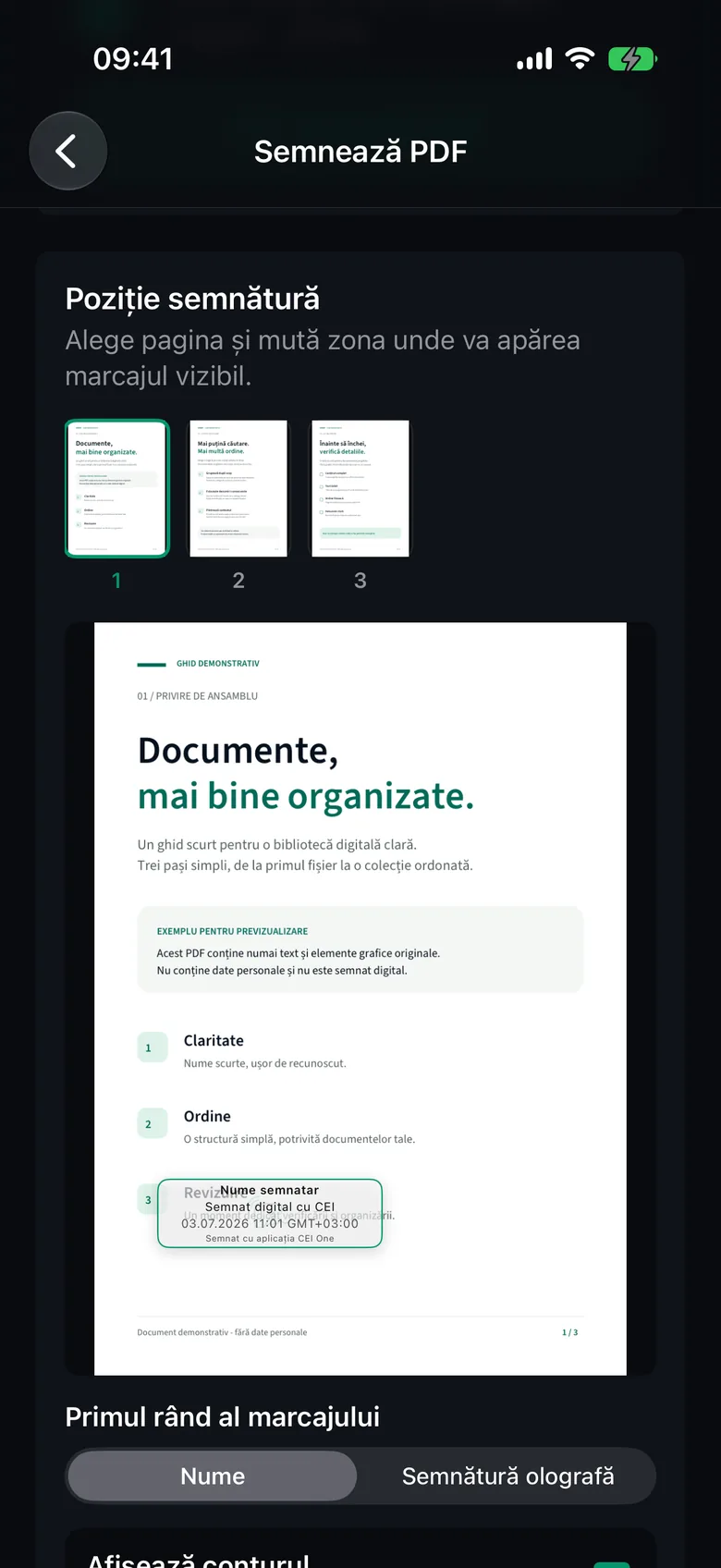
- Under Signature position, choose the page from the thumbnail strip.
- Drag the mark with your finger to where you want it to appear. The size of the mark is fixed.
- Under First line of the mark, choose Name or Handwritten signature.
- Leave Show border on if you want a subtle frame around the mark.
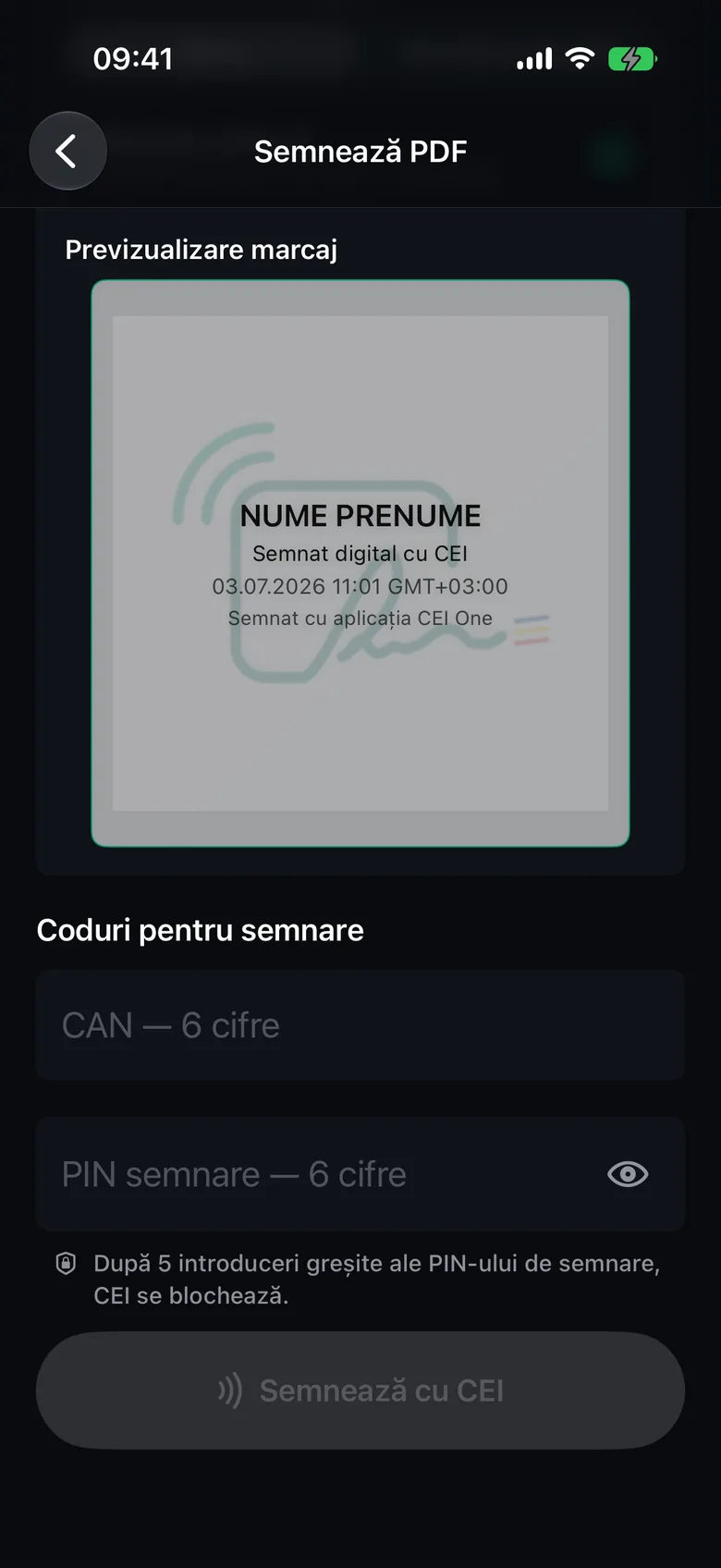
- Check how it looks in Mark preview.
- Under Signing codes, enter the CAN and your signing PIN.
- Tap Sign with your eID.
- When the NFC window appears, bring your eID to the top of the iPhone and hold it still.
- Stay on the screen until the final confirmation. When it finishes, PDF signed opens.
Tip
With Handwritten signature, the mark uses the image of your handwritten signature stored on the eID. The app reads it from the card while signing. You don’t have to draw anything.
If the document already has signatures, the editor shows them and moves the mark so it doesn’t cover them. Below the CAN field you can use a remembered CAN. If you choose several PDFs at once, the Sign Several PDFs screen opens. See Sign several PDFs.
What happens while signing
A progress card shows you each step. First, the app downloads the revocation lists, before the eID is needed. Then, over NFC, the eID checks your signing PIN and signs the document. Finally, the app requests the timestamp, adds the validation evidence and checks the signed document again.
The timestamp is requested from DigiCert. Only if DigiCert doesn’t respond does the app try GlobalSign, then Sectigo. The authority receives only the cryptographic fingerprint of the signature, not the PDF.
Note
Sometimes, the first time you sign with a certificate, the NFC window closes after the certificate is read and appears again with the message “Hold your eID to the iPhone again to sign”. This is normal: bring your eID close one more time.
Note
Even when the app is set to English, two progress messages in the iPhone’s NFC window appear in Romanian: “Autorizam semnarea…” (authorizing signing) and “Citim certificatul de semnare…” (reading the signing certificate). Everything is working normally.
On the page, the mark contains the name from the signing certificate (or your handwritten signature), the text “Digitally signed with CEI”, the date and time of signing, and the text “Signed with the CEI One app”.
After signing
The PDF signed screen shows File, Date and Signer.
- Share opens the iPhone’s share sheet.
- Save saves a copy to the Files app.
- Done takes you back to the Home screen.
The signed document is also kept automatically in Local history. The original file isn’t changed.
Your signing PIN
Important
After 5 incorrect entries, the signing PIN is blocked. When you have only one attempt left, the app doesn’t send the PIN until you tap Use the last attempt. A blocked PIN can be unblocked only through the official reset procedure.
You can’t change PINs on iPhone. You can change them in the CEI One app for Mac, under PIN codes.
For other error messages, see Troubleshooting.