With Scan you turn a paper document into a PDF, right on your iPhone. Then you choose what to do with it: save it, sign it by hand or sign it electronically with your eID.
Scan the pages
- On the Home screen, under Documents, tap Scan.
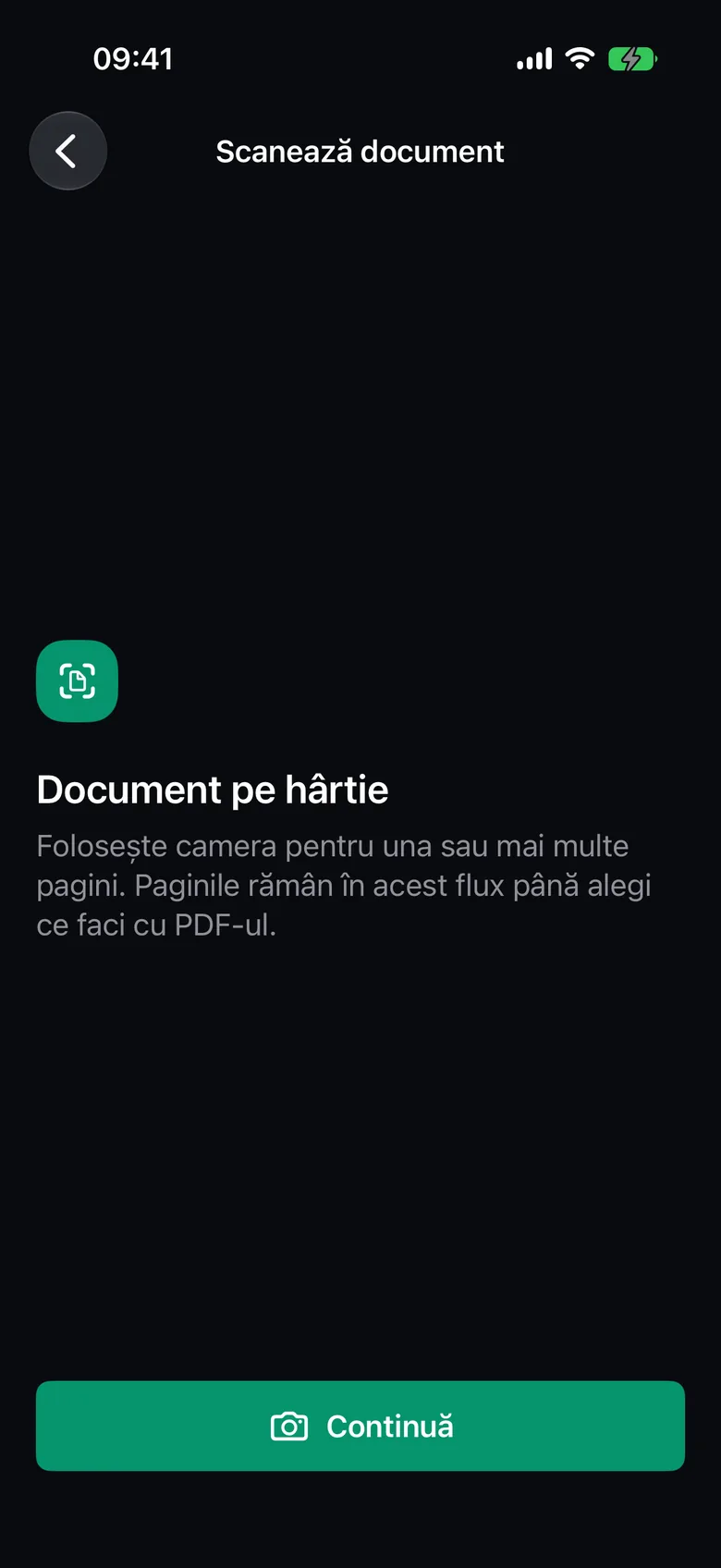
- On the Scan document screen, tap Continue.
- The first time, allow access to the camera.
- Photograph the pages with your iPhone’s camera. The document’s edges are detected automatically, and you can scan several pages.
- On the Review scan screen, check the pages. You can add new pages, or rotate, move, replace or delete the selected page.
- Under PDF name, type the file name.
- Tap Prepare PDF.
Note
The scanned pages stay only within this flow until you choose what to do with the PDF. A scan is kept only if you save it.
Choose what to do with the PDF
On the Finish scan screen, under Choose an outcome, you have three options.
Save as PDF
Choose Save as PDF. Scan ready opens, with the file’s name, number of pages and size. Tap Done to save the document to Local history.
Handwritten signature
This is how you add your hand-drawn signature to the document.
- Choose Handwritten signature.
- Under Draw your signature, sign with your finger or Apple Pencil.
- Tap Continue.
- Choose the page and drag the signature where you want it. You can also make it bigger or smaller.
- Tap Apply signature. To redo it, tap Edit signature.
- On the Signature applied screen, tap Done to save the document to Local history.
Important
A drawn signature is just an image placed on the page. It is not an electronic signature made with your eID.
Electronic signature
Choose Electronic signature. Sign PDF opens with the scan loaded. Continue with the steps in Sign a PDF on iPhone.
Export the document
On the result screen, Share PDF opens the iPhone’s share sheet. After you tap Done, the Document ready screen confirms Document saved locally. From there you can use Share document or Scan another document.
iCloud
If you’ve turned on iCloud sync, scans saved with Save as PDF are copied to your private iCloud. Documents with a handwritten signature aren’t synced. See iCloud sync.
If scanning doesn’t start
If you see Scanning unavailable, check that CEI One has access to the camera in your iPhone’s Settings app. For other messages, see Troubleshooting.