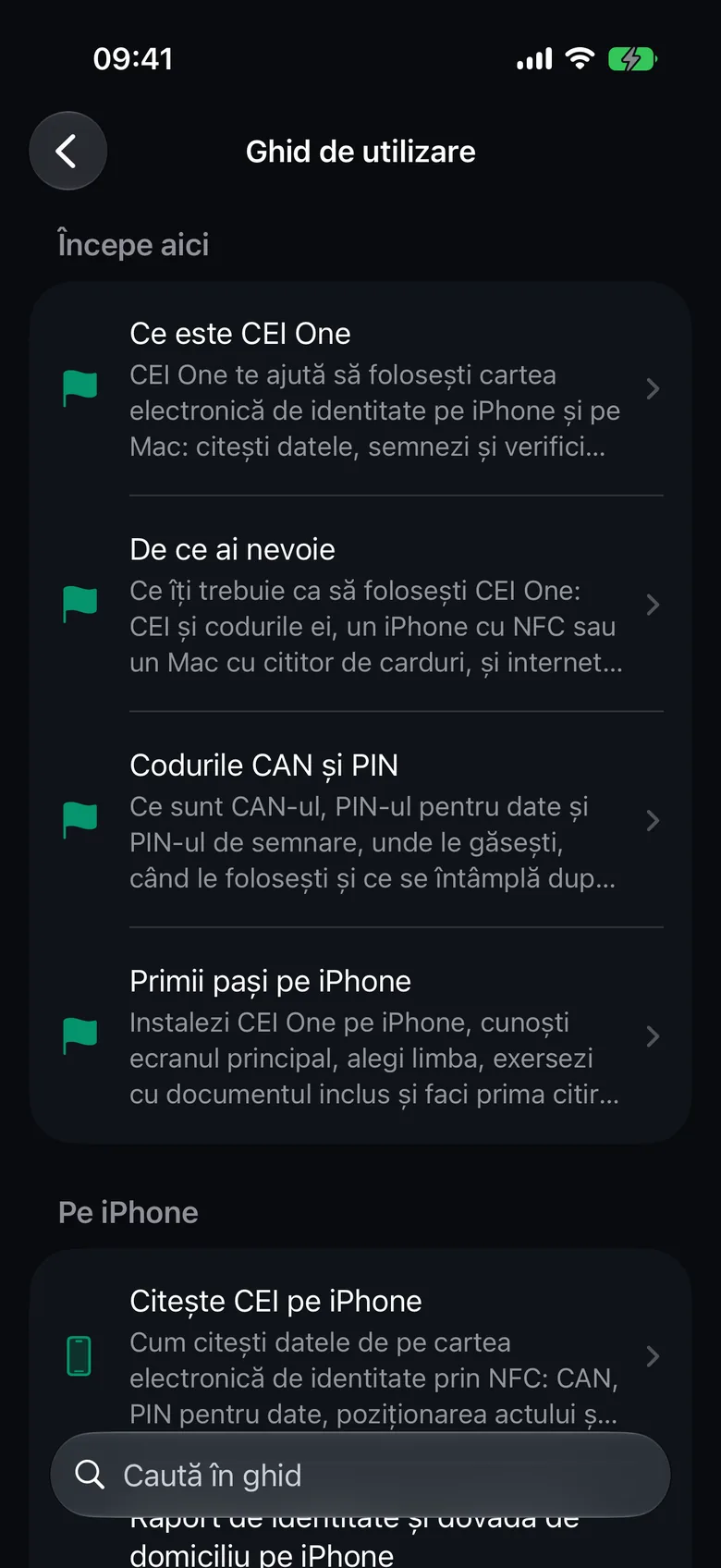
In Settings you control what the app keeps, whether it syncs with iCloud, how it looks and which language it uses. On the Home screen, under Local control, tap Settings.
At the top, the Control your data card shows how many documents you have and how much space they take up.
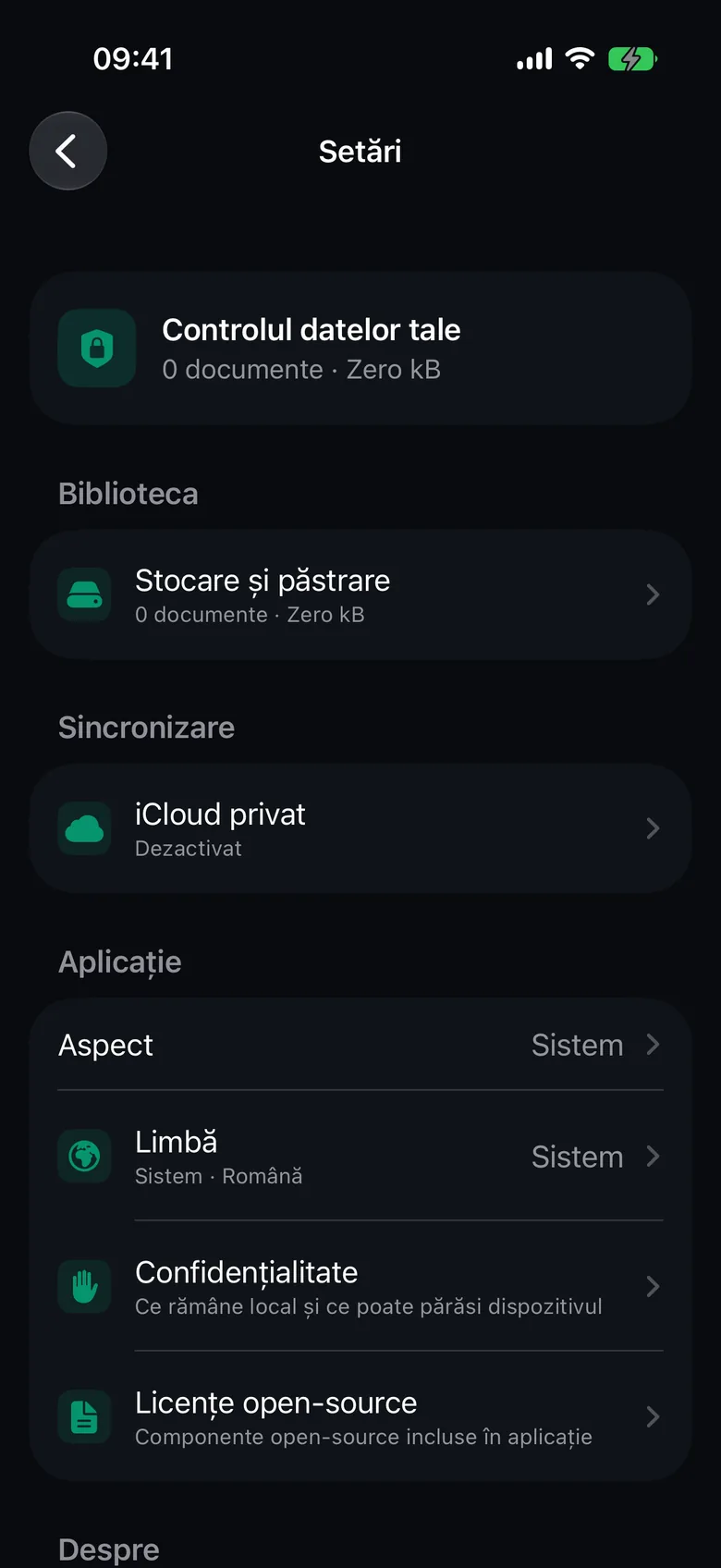
Storage and retention
Path: Settings › Library › Storage and retention.
Under On this device you’ll see the number of documents, the space they use, the latest document and the details for each document type.
Under General rule you set the library’s limits:
- Documents: between 10 and 500. The default is 100.
- Period: between 7 and 730 days. The default is 180 days.
- Storage: between 50 and 5,000 MB. The default is 500 MB.
Under Exception by document type, choose a Document type and turn on Use custom limits to give it different limits.
- Change the limits.
- Tap Apply rules.
- The app shows you how many documents would be removed and asks you to confirm.
Nothing is removed automatically. The rules apply only after you confirm. Documents are removed from this iPhone only; the copies in iCloud stay.
Delete all local documents deletes every document on this iPhone, after you confirm. Documents that aren’t saved in iCloud are deleted permanently.
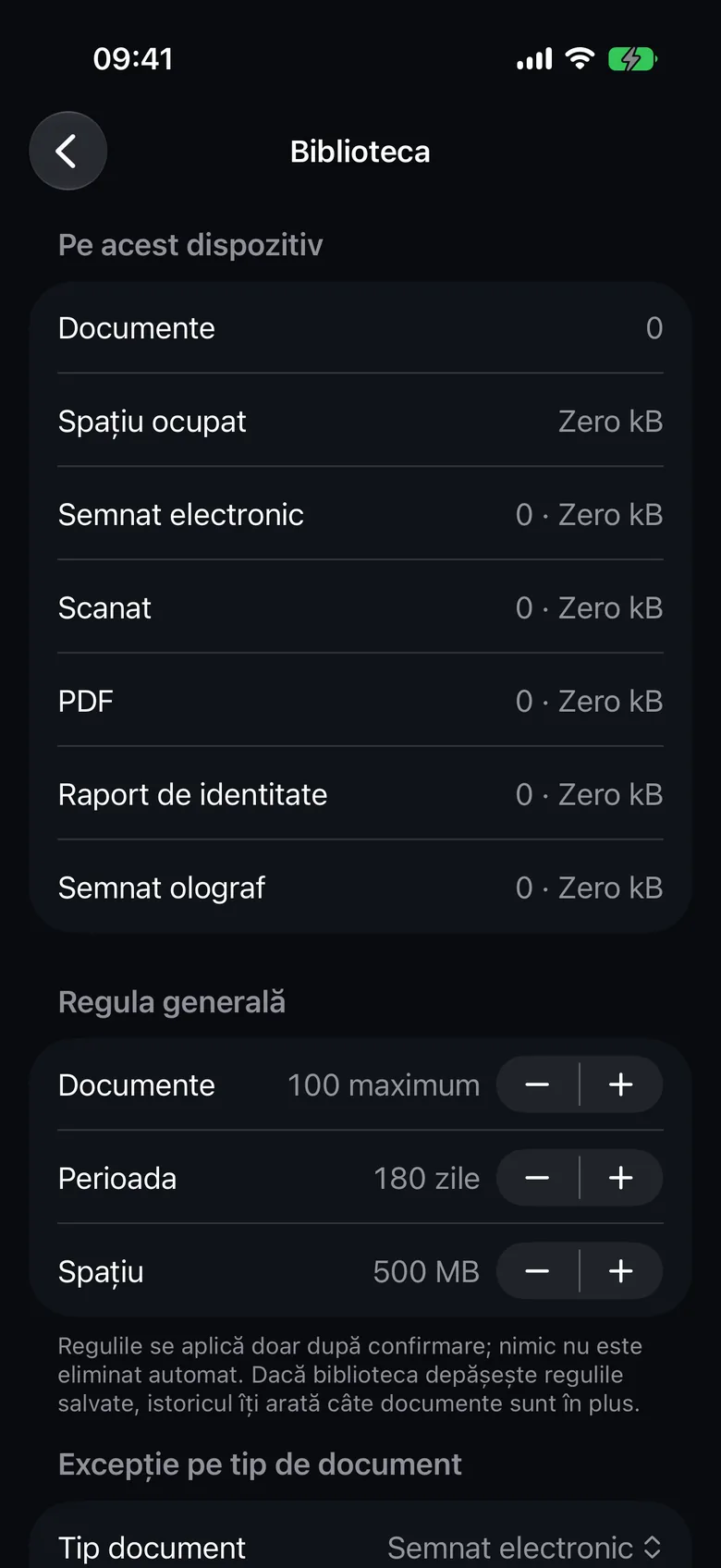
Private iCloud
Path: Settings › Sync › Private iCloud.
Sync is off by default. Turn on Sync library to keep your PDFs in the private iCloud database of your account and see them on your other devices.
- Under Status you’ll see the sync status, Last sync, any problems and the Sync now button, which starts a sync right away.
- What is synced explains the data sent to iCloud: your PDFs and their metadata.
The CAN, your PINs, the identity data and photo read from your eID, identity reports and proofs of address are never synced. Details in iCloud sync.
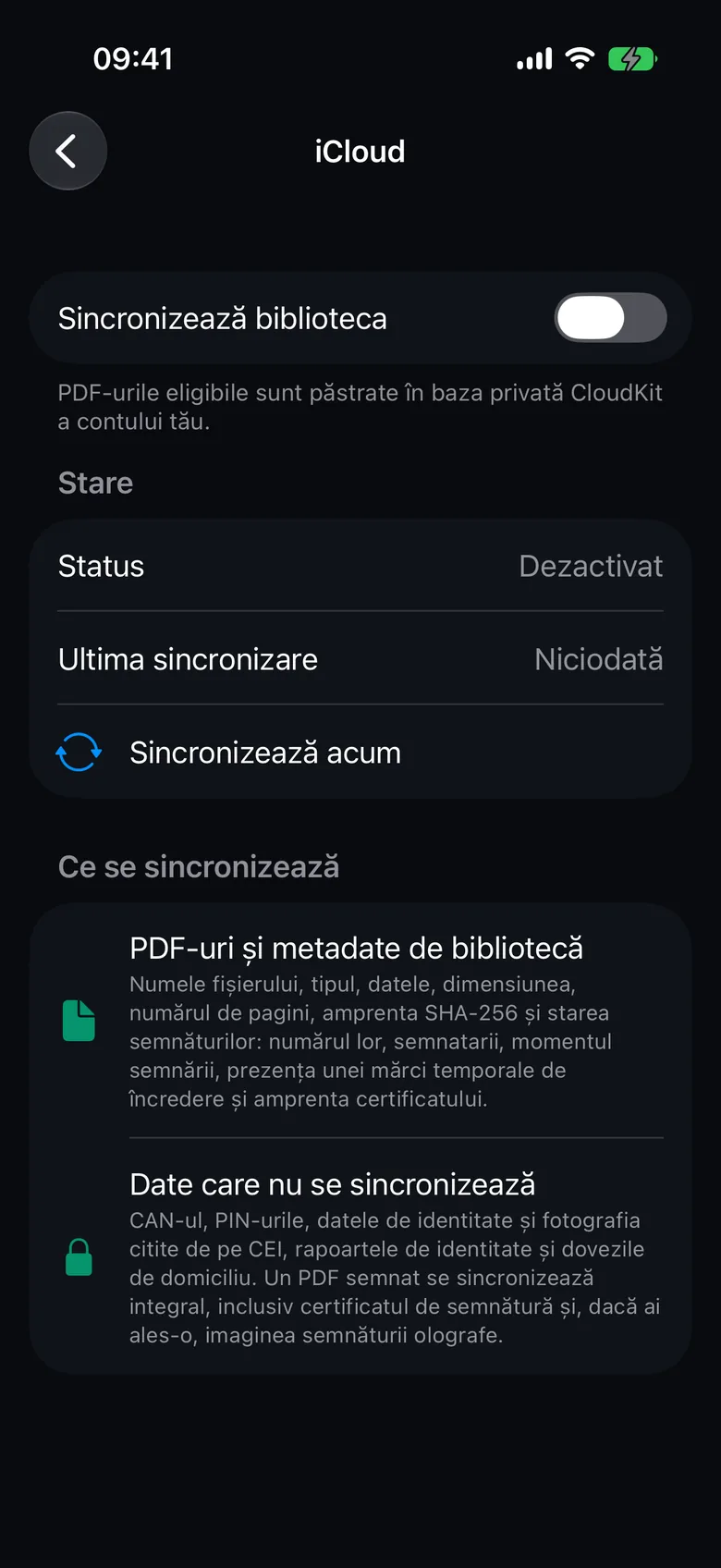
Appearance
Under Appearance, choose System (the default), Light or Dark.
Language
Under Language, choose System (the default), English or Romanian. The change applies right away, including to the PDFs the app generates.
With System, the app is in Romanian only if your iPhone’s first preferred language is Romanian. Otherwise, it’s in English.
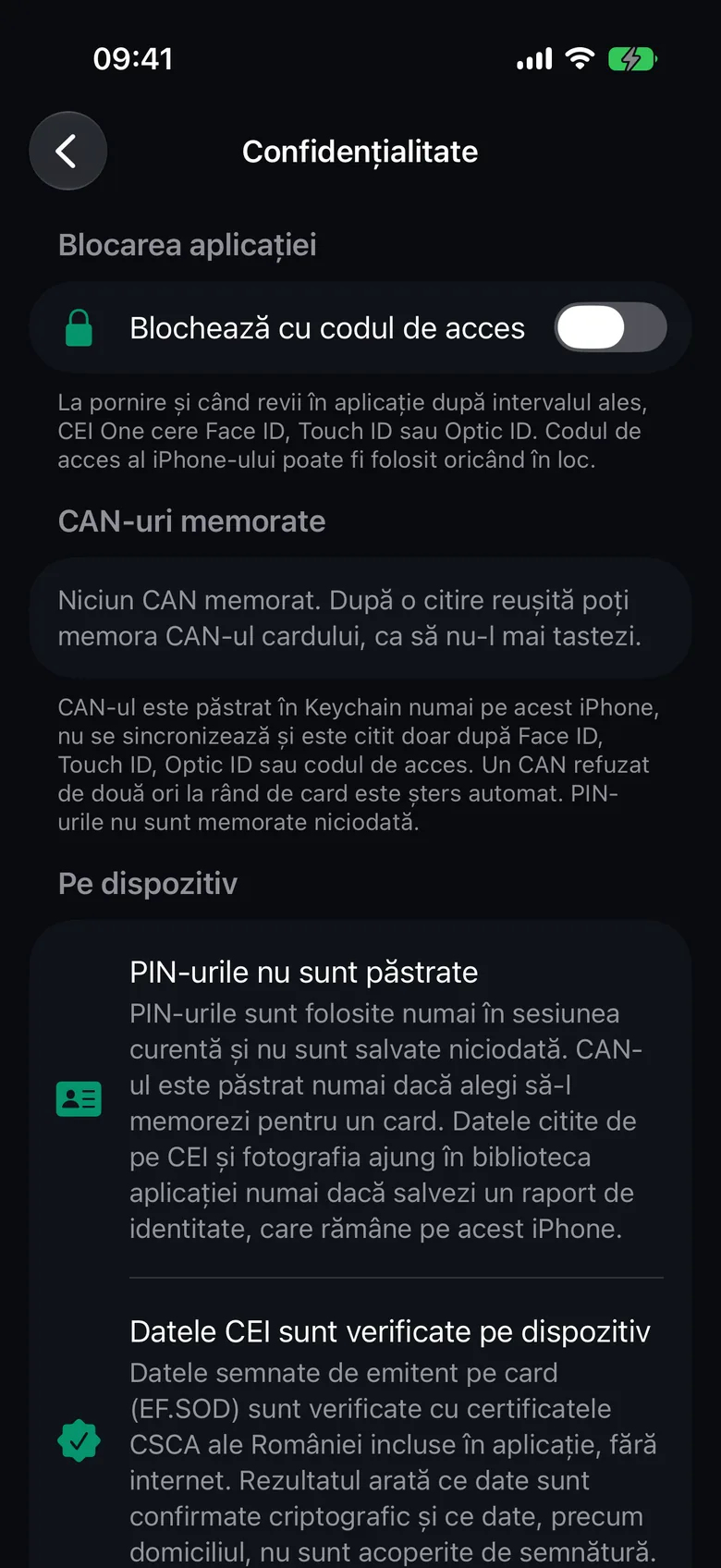
Privacy
Path: Settings › App › Privacy.
This screen explains what stays local and what can leave your device:
- On device: PINs aren’t kept, your eID data is checked on the phone, and the handwritten signature read from the eID is used only where you choose.
- External services: the timestamp (Timestamp) and extended validation when signing and verifying.
- iCloud: whether sync is on or off.
The Privacy screen also has the App Lock and Remembered CANs sections, explained in App lock and remembered CAN. In short:
- Lock with Face ID (or Touch ID, Optic ID, your passcode) asks you to authenticate when the app opens. It’s off by default and needs a passcode set on your iPhone.
- After you turn on the lock, Require Unlock appears. It sets when the app locks after you leave it: Immediately, After 1 minute or After 5 minutes.
- Under Remembered CANs you see the cards with a remembered CAN. Swipe a row to delete it, or tap Delete All Remembered CANs.
For more about your data, see Privacy and security.
Open-source licenses
Open-source licenses lists the open-source components included in the app, each with the full text of its license: NFCPassportReader (MIT) and OpenSSL (Apache-2.0).
About
Under About you’ll see the app version and build number. Include them when you ask for help on the support page.
Help
Path: Settings › Help › User guide.
The user guide is built into the app and works without internet. It contains the website documentation pages that apply to iPhone, without screenshots. The guide appears in the language you chose under Language.