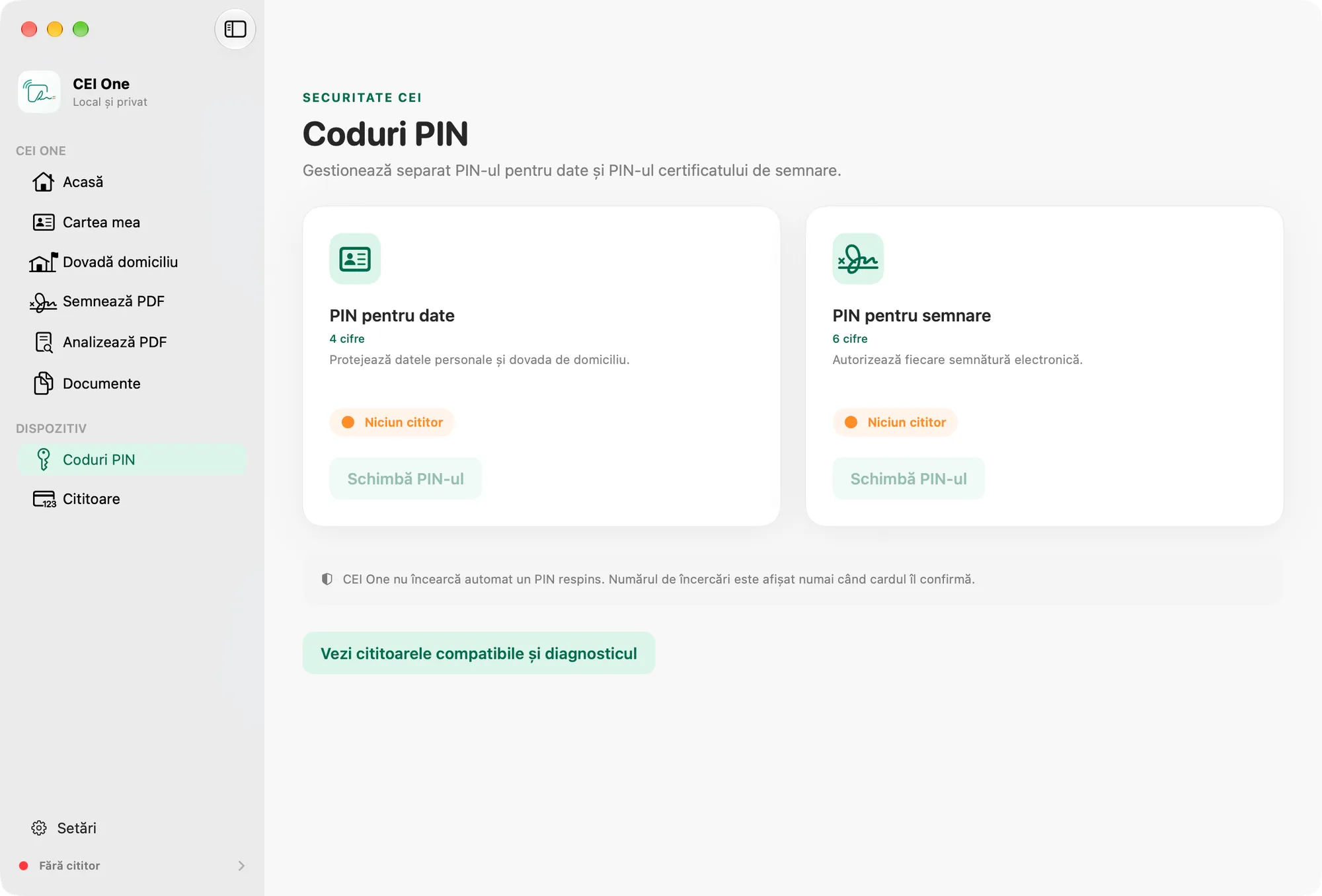
On the PIN codes page, you change your eID’s data PIN or signing PIN. The change is made on the card, through the reader connected to your Mac. You can’t change PINs on iPhone.
The two codes
- Data PIN: 4 digits. It protects your personal data and the proof of address.
- Signing PIN: 6 digits. It authorizes each electronic signature.
You change them separately. Each one has its own card, with a status badge and a Change PIN button.
Change a PIN
- Insert your eID into the reader.
- Choose PIN codes in the sidebar (⌘7).
- On the card for the code you want to change, click Change PIN. The button is available only when the card is in the reader.
- In the Change data PIN or Change signing PIN window, type the CAN under CAN code. The app checks the card automatically and shows CAN verified.
- Type your current code under Current PIN.
- Type the new code under New PIN, then once more under Confirm the new PIN.
- Click Change PIN (Return). Don’t remove your eID from the reader until it finishes.
When the change succeeds, a message appears on the page, for example “Data PIN was changed.”
The cursor moves to the next field on its own once a field is full. If the CAN check failed, click Check the eID and PIN status to try again. To give up, click Cancel (Esc). The window can’t be closed while the app is checking the card or changing the PIN.
Rules for the new PIN
- It has exactly 4 digits (data PIN) or exactly 6 digits (signing PIN).
- It’s different from the current PIN.
- The confirmation matches the new PIN.
If a rule isn’t met, the app tells you which one, below the fields.
Remaining attempts
Each card’s badge shows the status: PIN blocked, Last available attempt, the number of attempts available, or Number of attempts unavailable. If the reader isn’t ready, the badge shows its state instead, for example No reader, Insert eID or Incompatible card.
CEI One never retries a rejected PIN automatically. The number of attempts is shown only when the card confirms it.
Important
On the last attempt, you have to check “I understand that this is the last attempt confirmed by the card.” before you change the PIN.
To find out where to unblock a blocked PIN, see CAN and PIN codes.
Important
If you see “We cannot confirm whether the PIN changed.”, reconnect your eID and check its status before you try again.
If the reader isn’t ready, the page shows a View compatible readers and diagnostics button. See Card readers on Mac.
If you have a remembered CAN for the card, you can also use it in the PIN change window, with Use the remembered CAN · ⟨name⟩ (or the Use a remembered CAN menu, if you’ve remembered the CAN for several cards).