iCloud sync keeps the documents in your CEI One library in the private CloudKit database of your Apple Account. That way you see them on both your iPhone and your Mac, and you don’t lose them when you change devices. Sync is off by default and starts only if you turn it on yourself.
Turn on sync
On iPhone
The first time you open Local history, the app asks you “Sync your library with iCloud?”.
- Choose Enable sync to turn it on. The first sync starts right away.
- Choose Keep local only to leave it off.
You can change your choice at any time:
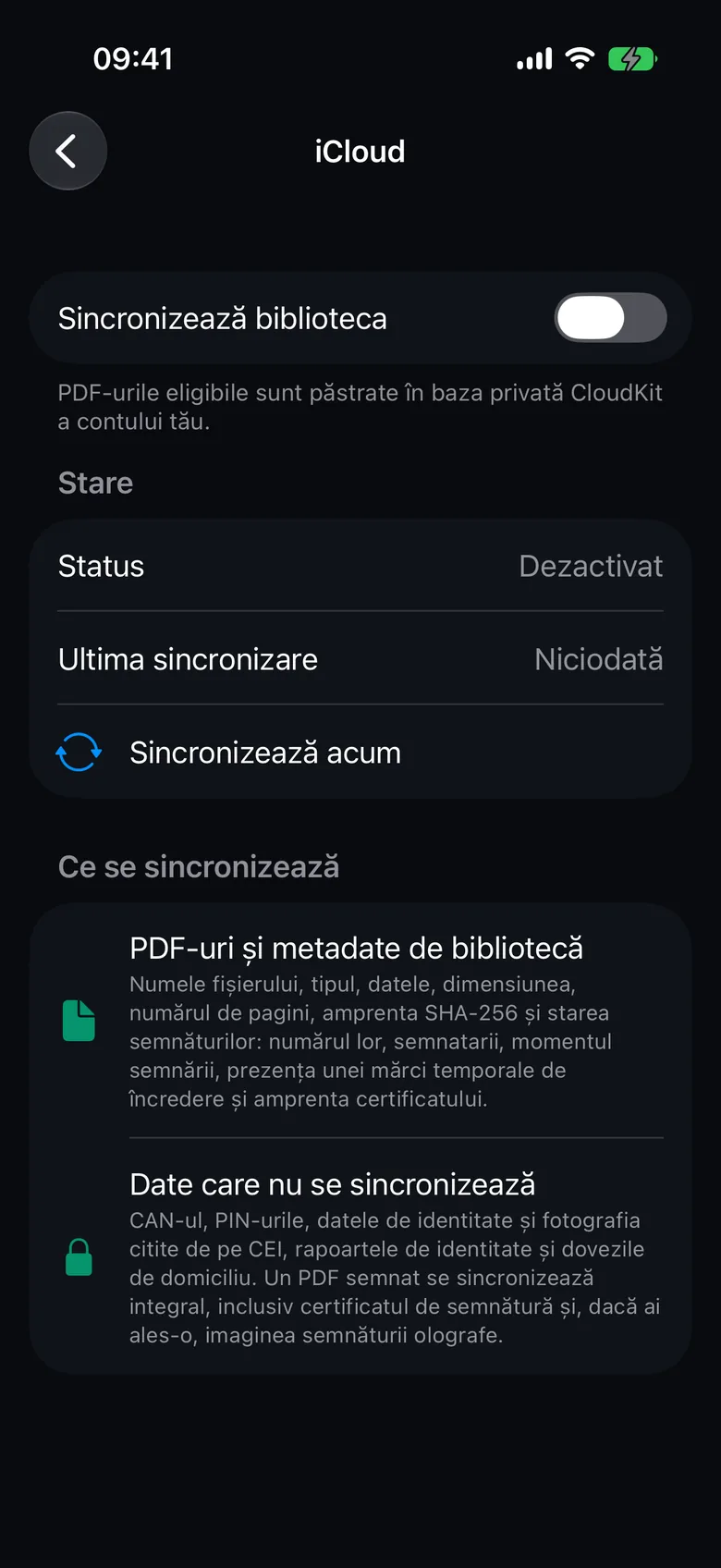
- Open Settings › Sync › Private iCloud. The iCloud screen opens.
- Turn on Sync library.
On Mac
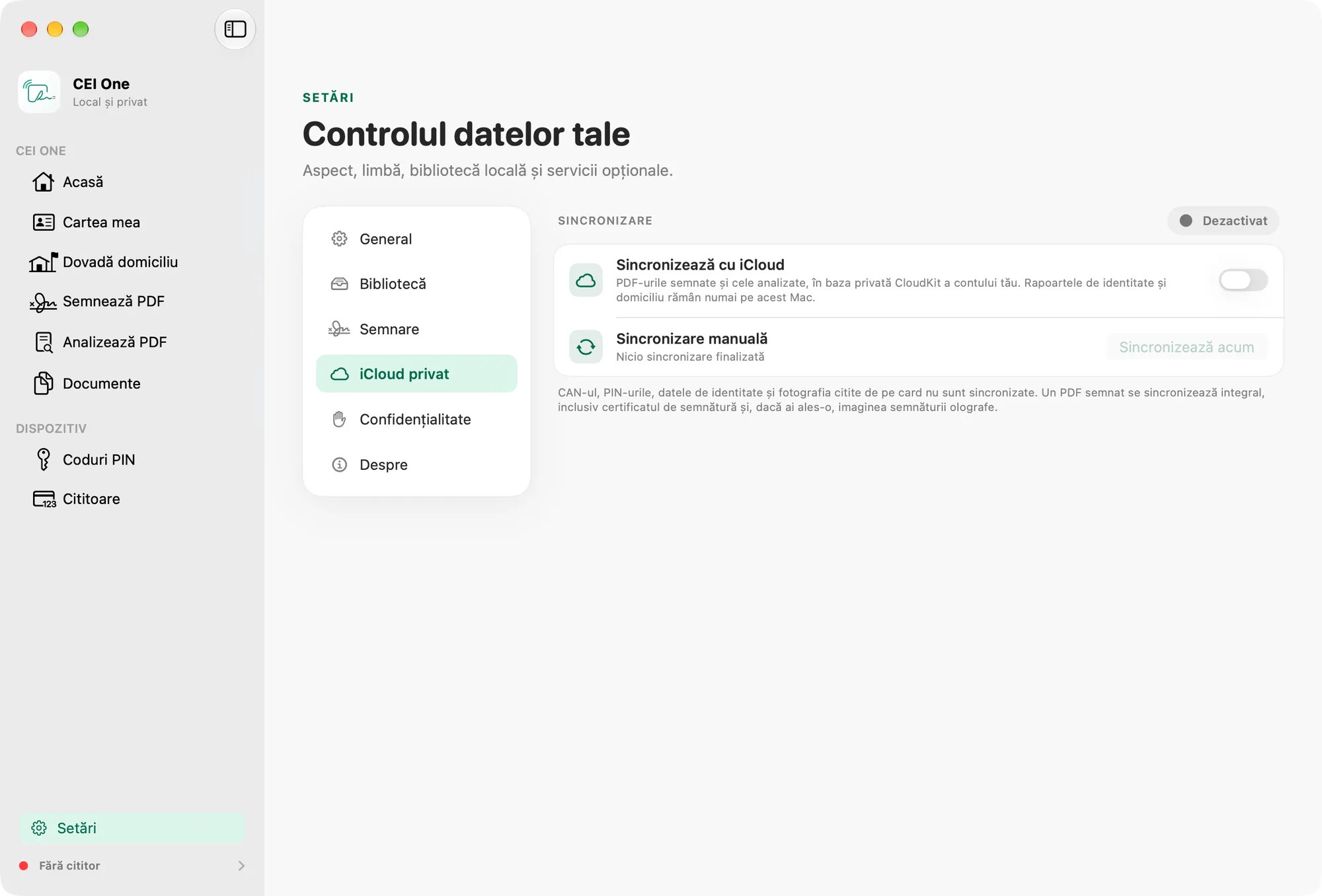
- Open Settings › Private iCloud.
- Turn on the Sync with iCloud switch.
- When asked “Sync your library with iCloud?”, choose Enable. With Not now, sync stays off.
Note
The app doesn’t contact iCloud without your consent. You need an active iCloud account on the device.
What syncs
From iPhone: signed PDFs, scanned PDFs and imported (unsigned) PDFs.
From Mac: signed PDFs and analyzed PDFs kept in Documents.
A signed PDF syncs in full, including the signing certificate and, if you chose it, the image of your handwritten signature.
Each PDF syncs together with its metadata: the file name, type, dates, size, page count, SHA-256 fingerprint and signature status. On iPhone, this also includes the number of signatures, the signers, the signing time, whether there’s a trusted timestamp, and the certificate fingerprint.
What never syncs
- The CAN and PINs.
- The identity data and photo read from your eID.
- Identity reports and proofs of address. They stay only on the device where you saved them.
- On iPhone, documents with a handwritten signature from Scan and the practice document included in the app.
Sync status
On iPhone, in Settings › Sync › Private iCloud, the Status section shows:
- Status: Off, Active, In progress or Needs attention.
- Last sync, with the date or Never.
- Pending deletions and Hidden on this iPhone, if there are any.
- The Sync now button.
With sync on, opening Local history also starts a sync.
On Mac, in Settings › Private iCloud, you see a status label (Syncing, Needs attention, Enabled or Off), the last sync and the Sync now button. The Needs attention group appears when something needs you, for example Sync failed or Pending deletions.
Deleting synced documents
When you delete a document that has a copy in iCloud, you choose where to delete it:
- On iPhone: Delete only from this iPhone keeps the copy in iCloud and on your other devices. Delete from all devices (iCloud) deletes it everywhere.
- On Mac: Remove from This Mac keeps the copy in iCloud. Delete from All Devices… deletes it everywhere, after a second confirmation.
Important
Deleting from all devices can’t be undone. A document with no copy in iCloud is deleted permanently, even when you delete it only from the device.
Documents removed from just one device aren’t downloaded again automatically. To bring them back:
- On iPhone: in Settings › Sync › Private iCloud, tap Show hidden documents again. The row appears only when you have hidden documents on this iPhone.
- On Mac: Settings › Private iCloud, the Documents removed only from this Mac › Download Again row. The row appears only when there are such documents.
The retention rules in the library settings remove only the copies on the device. They don’t delete anything from iCloud.
Different versions of the same document
If a document has different versions on your devices, both are kept. The older version gets “(conflict copy)” added to its name. The app tells you about this with a note in the sync status.
Turn off sync
- On iPhone: Settings › Sync › Private iCloud, turn off Sync library.
- On Mac: Settings › Private iCloud, turn off Sync with iCloud.
Turning it off doesn’t delete anything. Documents stay on the device, and copies already uploaded stay in iCloud. You can delete them from iCloud by choosing to delete from all devices, or from your account’s iCloud settings.
Note
If you delete the CEI One data from your account’s iCloud settings, the app turns off sync and keeps the documents on the device.
If sync isn’t working
The most common messages and what to do in each case are in Troubleshooting. For example:
- On iPhone: “There is no active iCloud account on this iPhone.” Sign in to iCloud in Settings.
- On Mac: “There is no active iCloud account on this Mac.” Sign in to iCloud in System Settings.
- “There is not enough iCloud storage. Local documents were not deleted.” Free up space in iCloud.
- “The iCloud account has changed.” Switch back to the previous account or turn off sync.