With Verify signature you can find out whether an electronically signed PDF is intact and who signed it. You don’t need your eID to verify.
Verify a PDF
- On the Home screen, under Local control, tap Verify signature.
- Tap Select PDF and pick the file from Files.
- Wait while the Signature verification card shows the verification steps. When it’s done, the report appears on the same screen.
- Read the verdict and the signature details.
- To check another document, tap Verify another PDF, at the top of the screen.
Tip
Don’t have a signed PDF at hand? Use the practice document in Local history. See Local history on iPhone.
Note
If you open a PDF with CEI One from another app, the signing screen opens, not the verification screen. To verify, start from Verify signature.
What the app checks
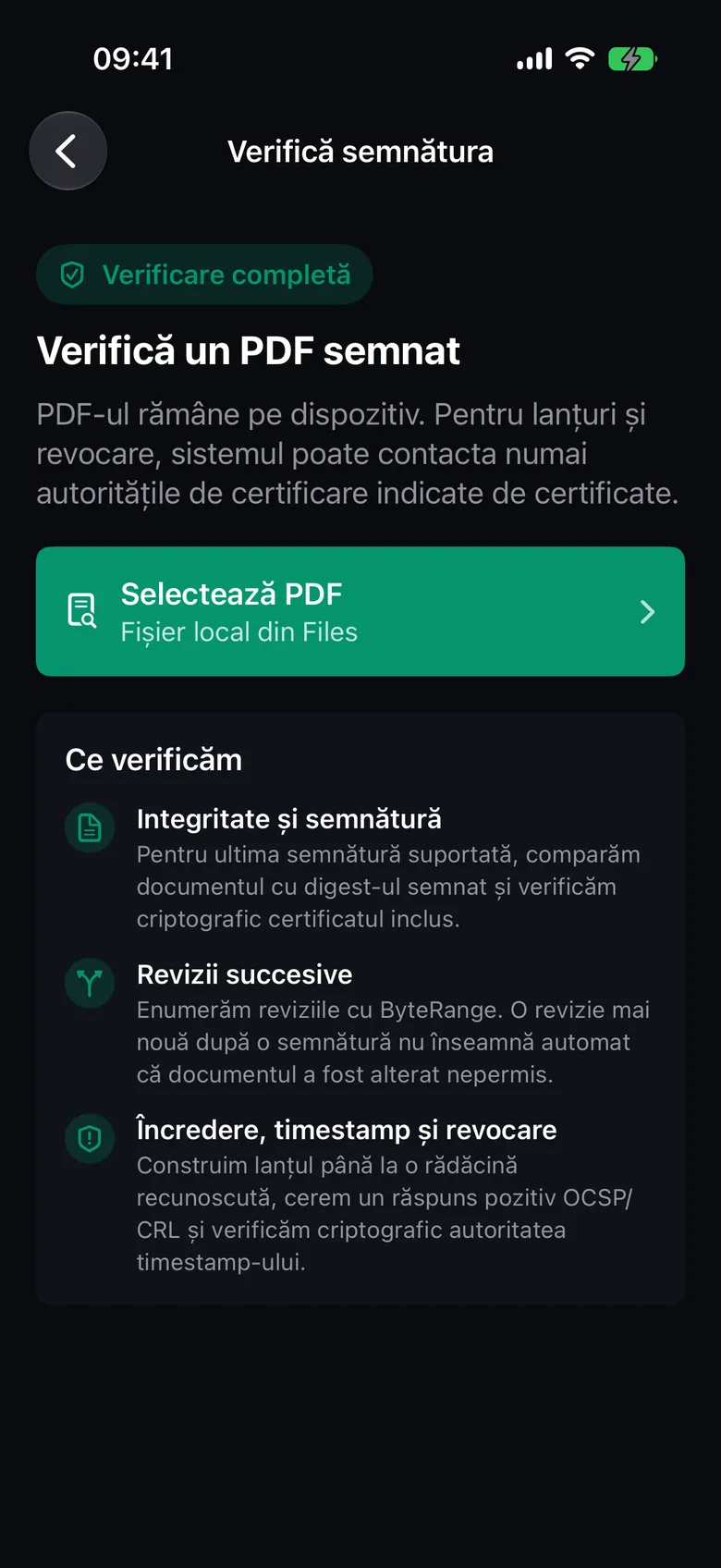
Before you choose a file, the What we verify card shows you the three checks:
- Integrity and signature: the document is compared with what was signed, and the signature is checked cryptographically.
- Successive revisions: the app lists the document’s revisions. A newer revision after a signature doesn’t automatically mean the document was tampered with.
- Trust, timestamp, and revocation: the app builds the certificate chain up to a recognized root, checks revocation (OCSP or CRL) and checks the timestamp.
The PDF stays on your phone. For the trust chain and revocation, the app may contact only the certificate authorities named in the certificates. That’s why a full verification needs internet.
The verdict
At the top of the report you’ll see one of these verdicts:
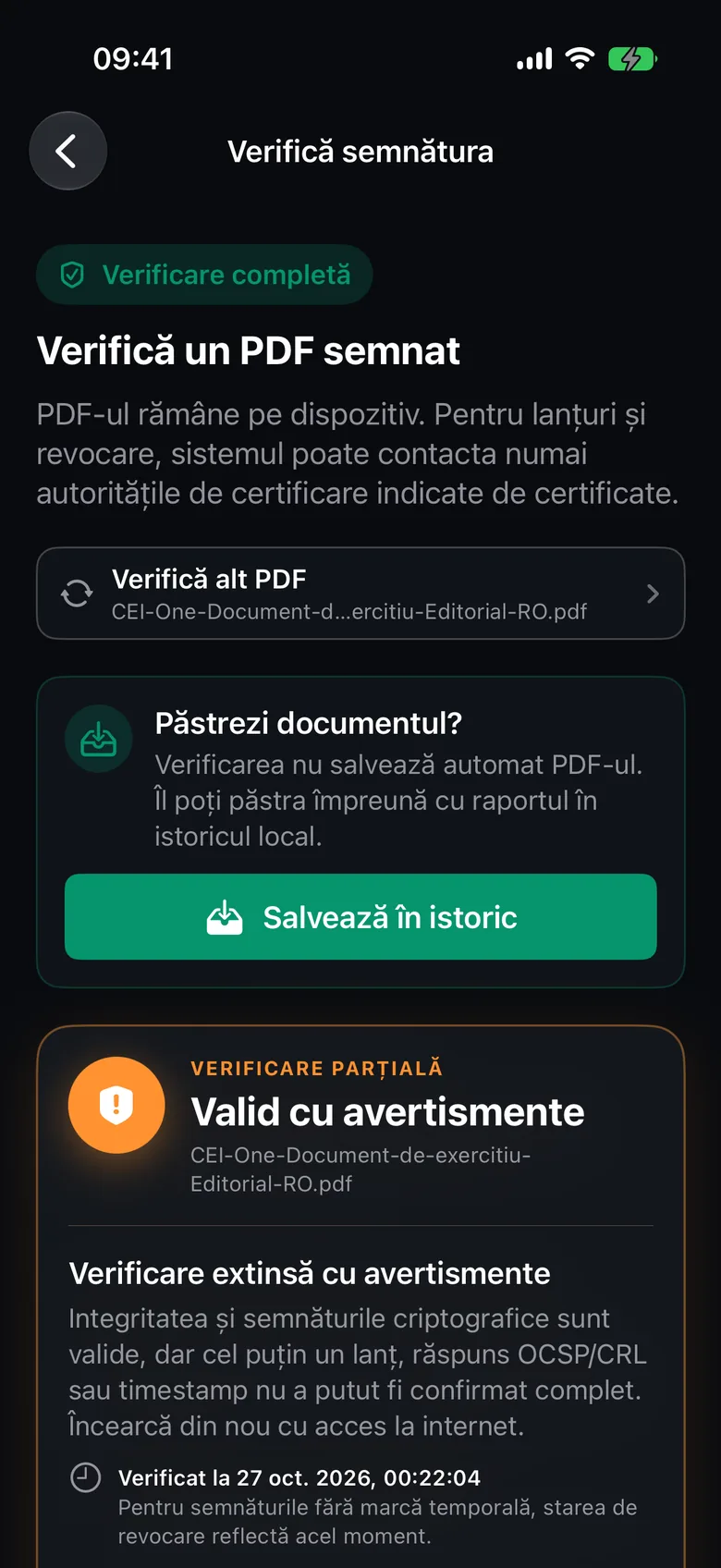
- Valid document: the signatures were fully verified.
- Valid with warnings: the signatures are cryptographically valid, but something couldn’t be fully confirmed, or the document was changed after signing in a permitted way.
- Invalid document: at least one signature, certificate, revocation response or timestamp isn’t valid, or the document was changed after signing.
- Inconclusive result: the verification couldn’t be completed, for example because of an unsupported format.
- Unsigned document: the PDF contains no electronic signatures.
Below the verdict, Needs attention explains the first problem found. The full explanation of each result is in Verification results.
Signature details
- The top row shows the number of signatures, how many are With timestamp, and the number of Warnings.
- Verification summary shows the most important result for each type of check.
- Under Signatures, each signature has a card you can open. You’ll see the signer, the signing date, the certificate issuer and every check with its status.
A check can have one of these statuses: Verified, Failed, Unconfirmed, Missing, Detected, Signed revision and With a note. A signature gets the label Valid, Valid, with a note, Review or Invalid.
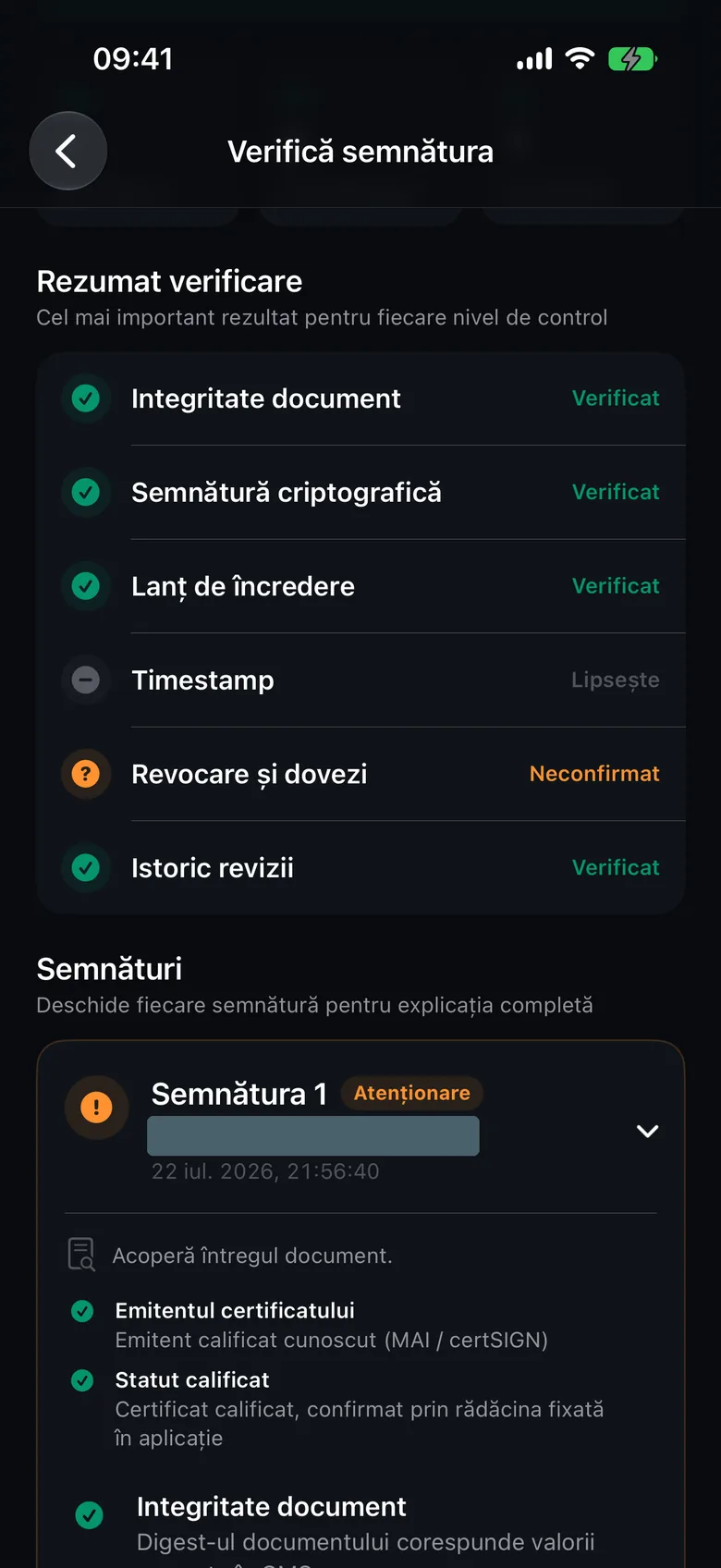
Each signature is titled “Signature k of n” and shows which part of the document it covers (for example “Covers the whole document.”). For a certification signature, you also see which changes the author allows.
Keep the document
Verifying doesn’t save the PDF. If the document is signed, Keep this document? appears above the report.
- Tap Save to history.
- The document and its report go to Local history.
If the document is already in your history, the app only updates the report.
Export the report
Tap Export report in the report. The app creates a PDF with the verification report and opens the iPhone’s share sheet. The report is in the app’s language and includes, for each signature, the certificate chain recorded during verification.