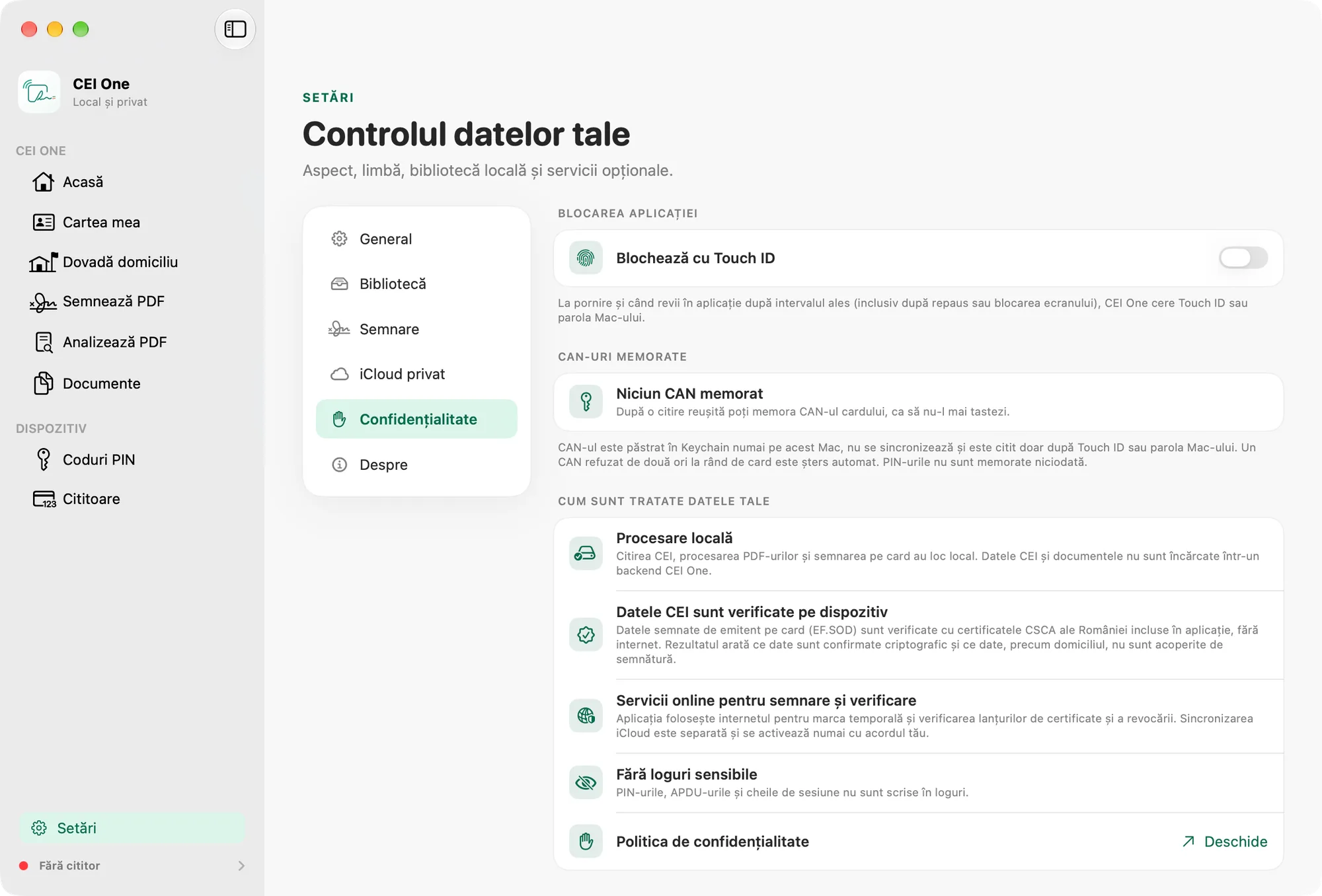
You can protect CEI One with Face ID, Touch ID, Optic ID, your iPhone passcode or your Mac password. This is also where you manage remembered CANs, which you use instead of typing the 6 digits. Both are optional and off by default.
Where to find the settings
- On iPhone: Settings › App › Privacy, the App Lock and Remembered CANs sections.
- On Mac: Settings › Privacy, the App Lock and Remembered CANs groups.
App lock
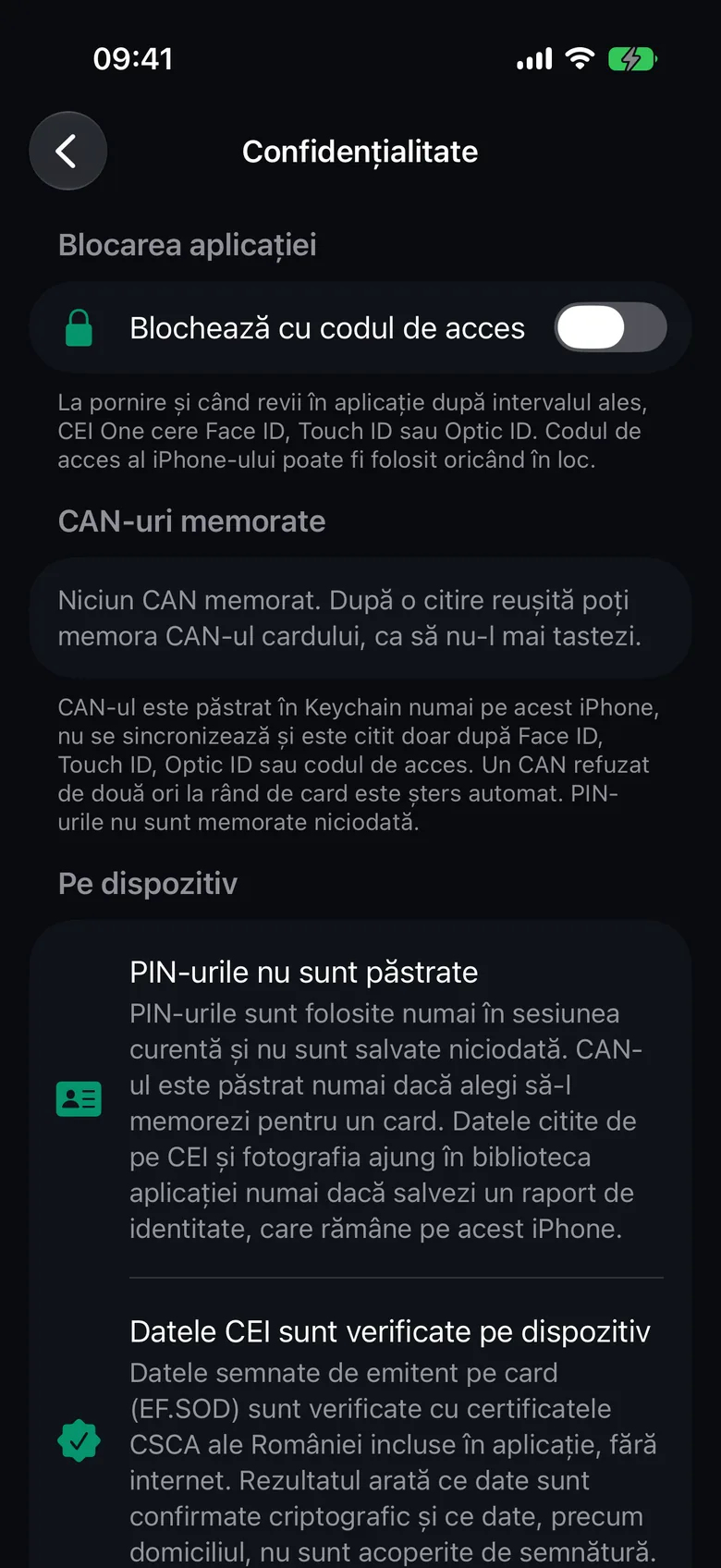
Turn on the lock
- Open Settings › Privacy (on iPhone, Settings › App › Privacy).
- Turn on the lock switch. Its name shows how you unlock the app, for example Lock with Touch ID.
- Confirm with Face ID, Touch ID or your password. The setting changes only if you authenticate.
- After you turn on the lock, Require Unlock appears. Choose there how soon the app locks: Immediately, After 1 minute or After 5 minutes.
On iPhone, depending on your device, the switch is called Lock with Face ID, Lock with Touch ID, Lock with Optic ID or Lock with Passcode. The default interval is Immediately.
On Mac, the switch is called Lock with Touch ID or Lock with the Mac password. The default interval is After 1 minute.
Turning the lock on doesn’t lock the session you’ve just authenticated in. To turn the lock off, turn off the same switch and confirm again.
Important
For the lock to work, your iPhone must have a passcode and your Mac account a password. If you remove them later, the lock turns itself off and you see a message about it in the settings.
How it works
- When the app starts, CEI One asks you to unlock it right away.
- When you come back to the app after the chosen interval, you’re asked to unlock it once.
- The lock screen shows the logo, the text CEI One is locked and a button, for example Unlock with Face ID on iPhone or Unlock with Password on Mac.
- If you cancel the prompt, the app stays locked. Tap the unlock button to try again.
- On iPhone, you can always use your passcode instead of Face ID, Touch ID or Optic ID.
- On iPhone, if you open a PDF in CEI One while the app is locked, it opens after you unlock.
- On Mac, sleep, locking the screen, hiding the app or switching to another app also count.
The app doesn’t receive or store any biometric data. It only receives the result of the check made by the system.
Remembered CAN
A remembered CAN saves you from typing the 6 digits for every read or signature. PINs are never remembered.
Remember a card’s CAN
- Read your eID with the CAN typed in: on iPhone from Read your eID or Proof of address, on Mac from My eID.
- After a successful read, you’re offered Remember the CAN for this card.
- Choose Remember. If you don’t want to, choose Not now.
The offer appears only if that card isn’t remembered already, the card has a document number and the device has a passcode (on Mac, the account has a password).
Use the remembered CAN
- Under the CAN field, choose Use the remembered CAN (with the cardholder’s name). If you have several cards, choose Use a remembered CAN and then the card.
- Confirm with Face ID, Touch ID, your passcode or your Mac password.
- The CAN is filled in automatically. Continue with the PIN.
The button appears when reading and when signing.
On Mac, it also appears when changing a PIN, in PIN codes.
Where it’s kept
- In the Keychain, only on that iPhone or Mac.
- It isn’t synced to iCloud and can’t be moved to another device through a backup.
- Alongside it, the app keeps the document number and a short form of the cardholder’s name, for example “Ion P.”, so you can recognize the card in the list.
- It’s read only after Face ID, Touch ID, Optic ID, your passcode or your Mac password.
Automatic deletion after two rejections
If a card rejects the remembered CAN, the app warns you: “The card did not accept the remembered CAN for Ion P. Check that it is the right card; if the card rejects it again, the remembered CAN will be deleted.” (the cardholder’s name appears instead of “Ion P.”). If the same card rejects it a second time in a row, the remembered CAN is deleted automatically. Then enter the CAN printed on the front of the card.
Note
If a remembered CAN can no longer be read on the device, the app deletes it when you try to use it and asks you to enter the CAN again.
Delete remembered CANs
- On iPhone: in Settings › App › Privacy, swipe on a card and choose Delete, or touch and hold and choose Delete CAN. To delete them all, choose Delete All Remembered CANs and confirm with Delete All.
- On Mac: in Settings › Privacy, choose Delete next to a card. For the whole list, choose Delete All and confirm with Delete All.
The next time you read the card, you’ll need to enter its CAN again.