In a few minutes you’ll install CEI One, learn where each feature lives and see a signature verification without needing your eID at hand. Then you’ll read your eID for the first time.
Install the app
- Download CEI One from the App Store. You need an iPhone with NFC and iOS 26.2 or later.
- Open the app. After a short animation, the Home screen appears.
You don’t create an account, and there’s nothing to set up first.
The Home screen
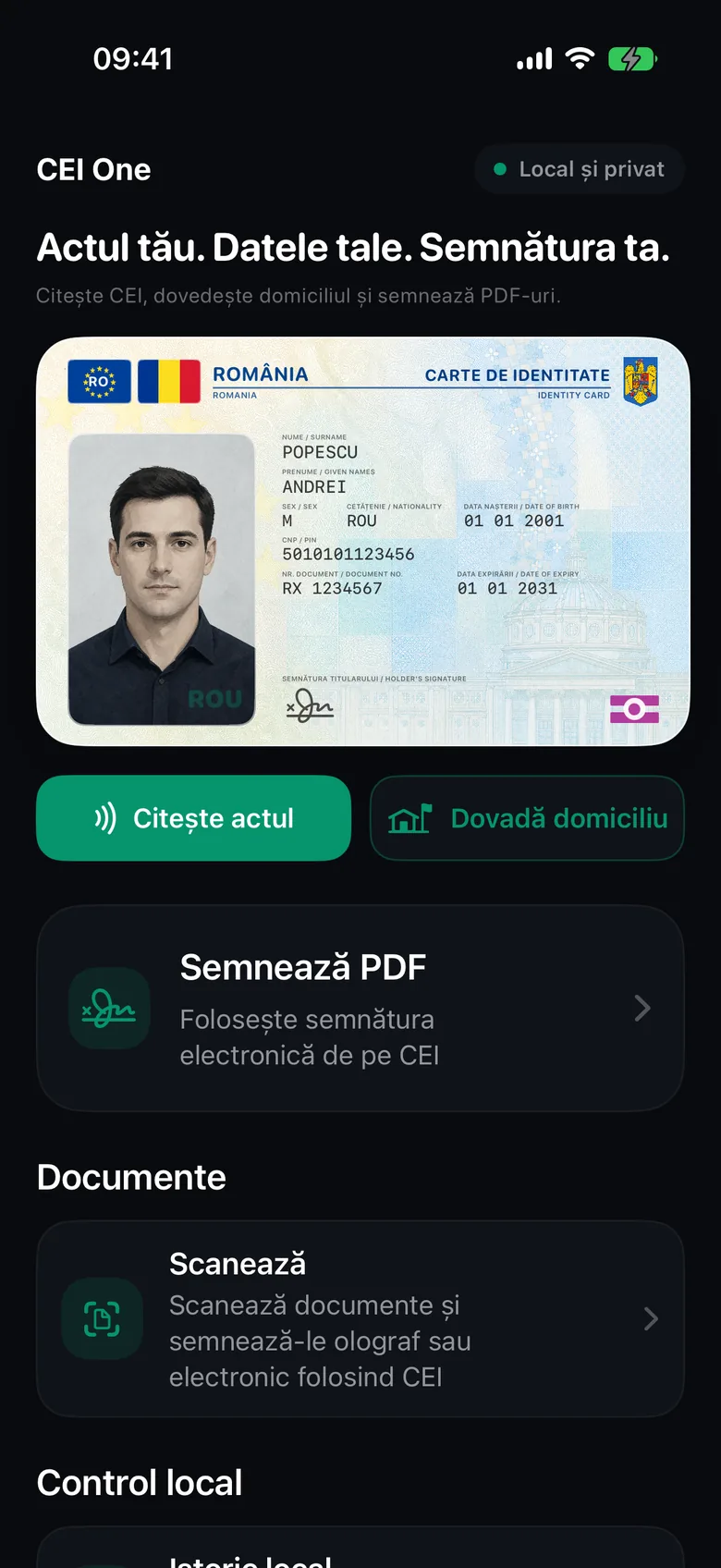
Every feature starts here. The app has no tab bar: you open a screen, and the back button brings you back here.
- At the top you’ll see the Local and private label and an illustration of an eID with fictitious data.
- Read your eID reads the data on your eID over NFC.
- Proof of address reads your address and prepares a PDF.
- Sign PDF signs a document with the electronic signature on your eID.
- In the Documents section, Scan turns paper documents into PDFs.
- In the Local control section you’ll find Local history (the documents saved on your iPhone), Verify signature and Settings.
Choose the language and appearance
- On the Home screen, tap Settings.
- In the App section, tap Language and choose System, English or Romanian.
- Tap Appearance and choose System, Light or Dark.
The change applies right away.
Note
With System, the app appears in Romanian only if Romanian is the first language in your iPhone’s language list. Otherwise it appears in English.
Try the practice document
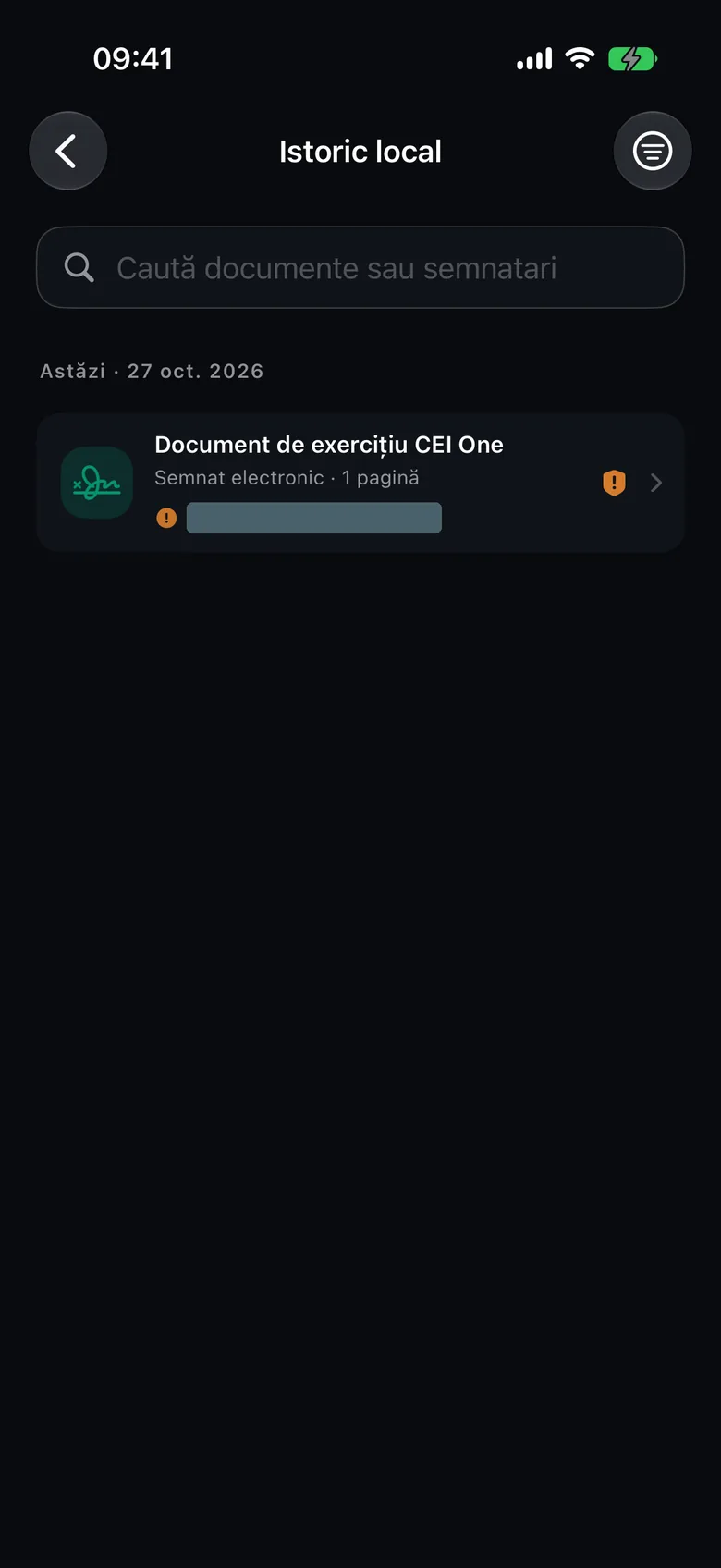
In Local history you’ll find CEI One Practice Document, a PDF that is already signed. Use it to see what a signature verification looks like, without your eID and without any codes.
- On the Home screen, tap Local history.
- The first time, the app asks Sync your library with iCloud?. Tap Keep local only or Enable sync. You can change this at any time from Settings › Sync › Private iCloud.
- Read the short Your local history guide and tap Got it.
- Tap CEI One Practice Document to open it.
- Tap More › Signatures. The Signature verification report opens.
Note
The practice document isn’t synced to iCloud. If you delete it, it won’t come back.
To learn what each result means, see Verification results.
Read your eID for the first time
Have your eID ready, along with the CAN printed on it and your data PIN (4 digits).
- On the Home screen, tap Read your eID.
- Enter the CAN in the CAN field and the PIN in the Data PIN field.
- Tap Next step. The positioning guide opens.
- Tap Start reading.
- Hold the eID’s chip against the top of your iPhone (on the back, next to the cameras, or on the screen, near the top), without moving it, until the reading finishes.
- Your data appears on the eID details screen.
Tip
On iPhone 18, hold the eID over the top edge, sticking out slightly to the right, with the photo facing you. If it sticks out to the left, the eID isn’t read. Don’t touch the screen with the eID: it can tap “Cancel” and stop the reading.
The data you read stays on your iPhone only for the session, unless you save a report. All the steps and NFC tips are in Read your eID on iPhone.